1st method: via the Moovago map, using Google Maps

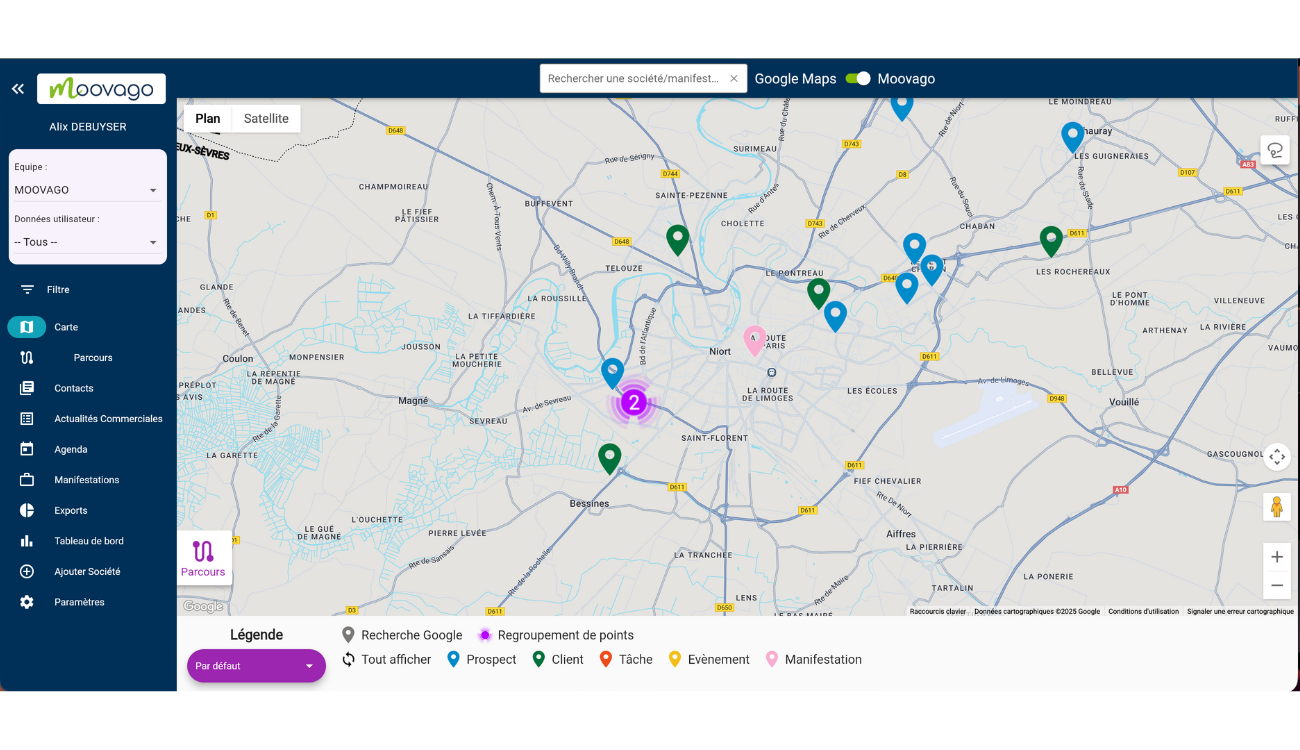
search for a company on the map

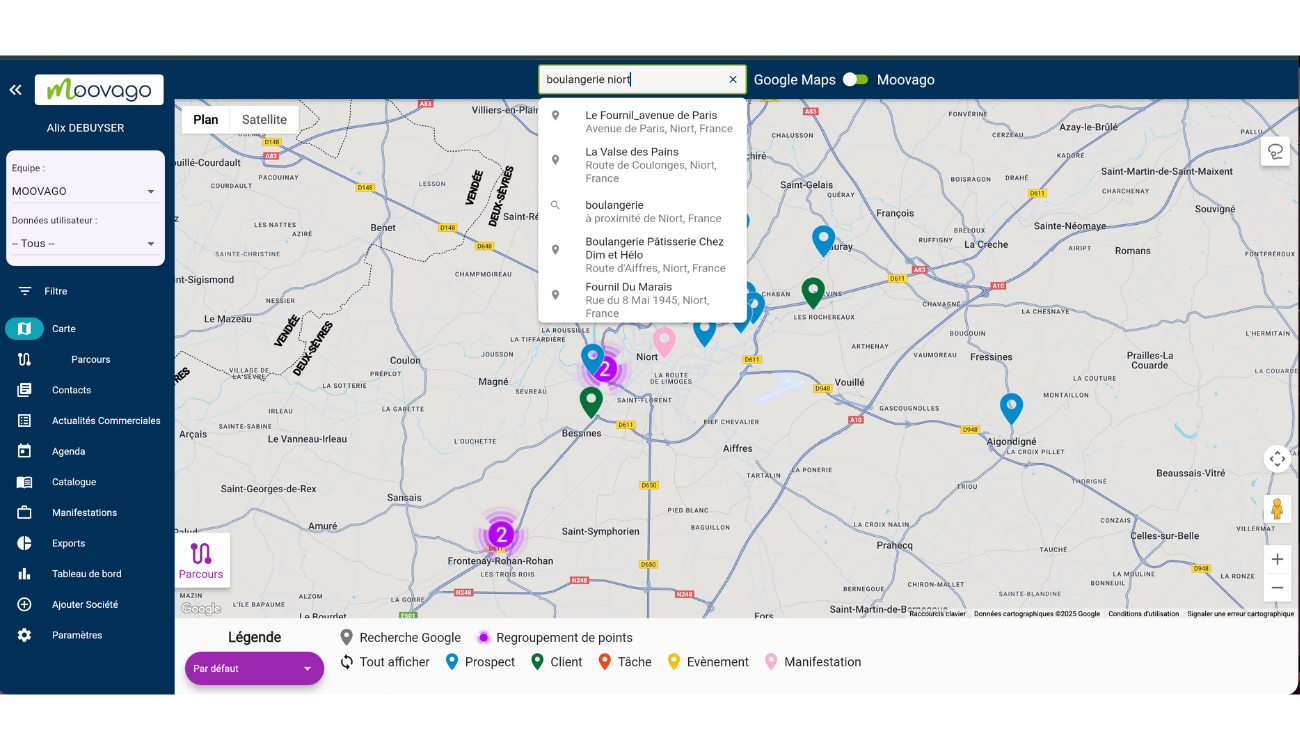
Type your search term, or the exact company name you're looking for, into the search bar.

google maps company search

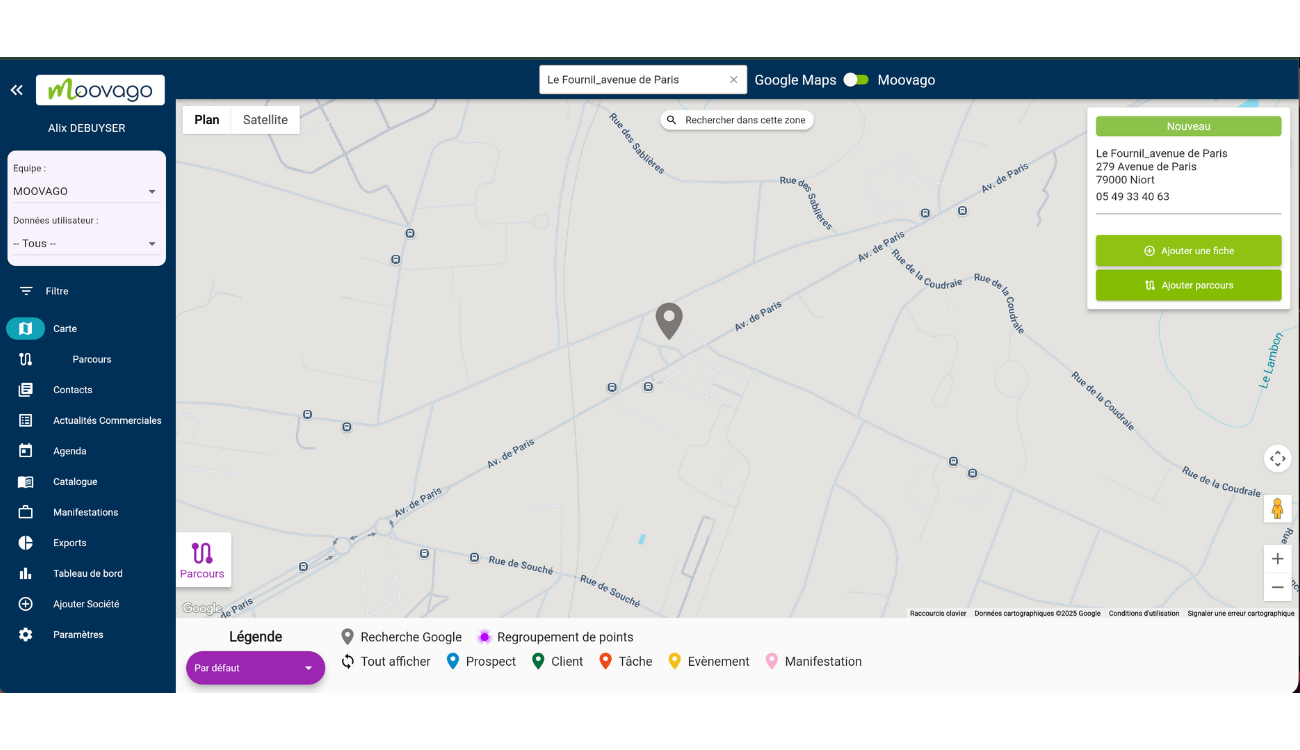
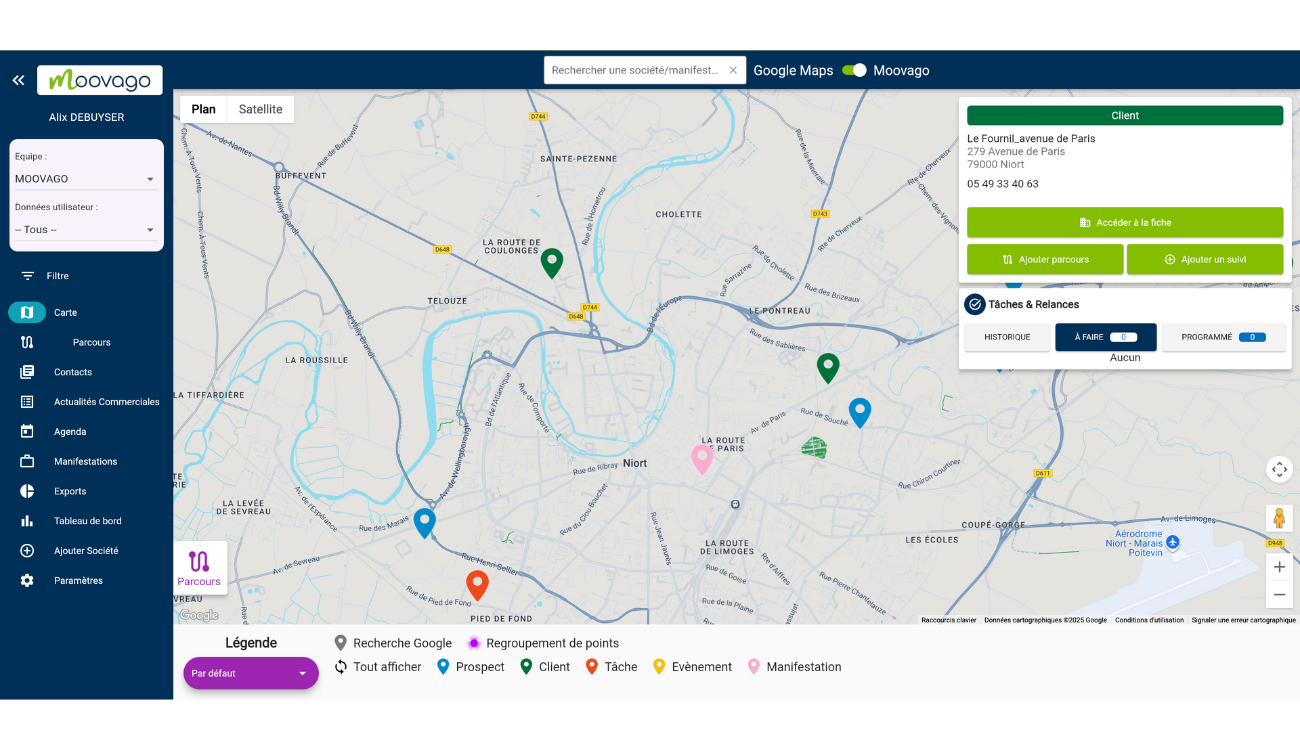
Moovago suggests companies: click on the one that suits you to select it. Then click on the grey cursor on the map:

In the small window on the right of the map, click on "Add a card".
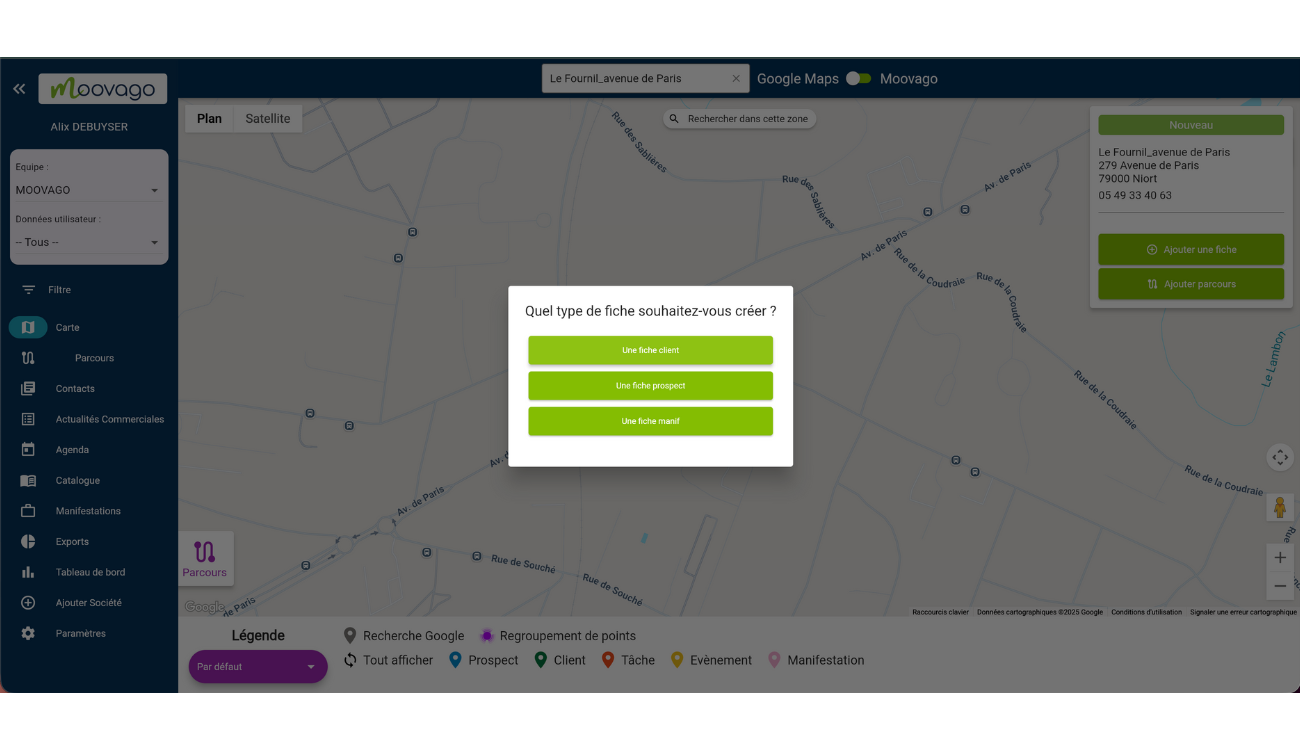
A pop-up window opens: indicate whether you wish to add the company as a customer, prospect or tradeshow.

add a company to the moovago map

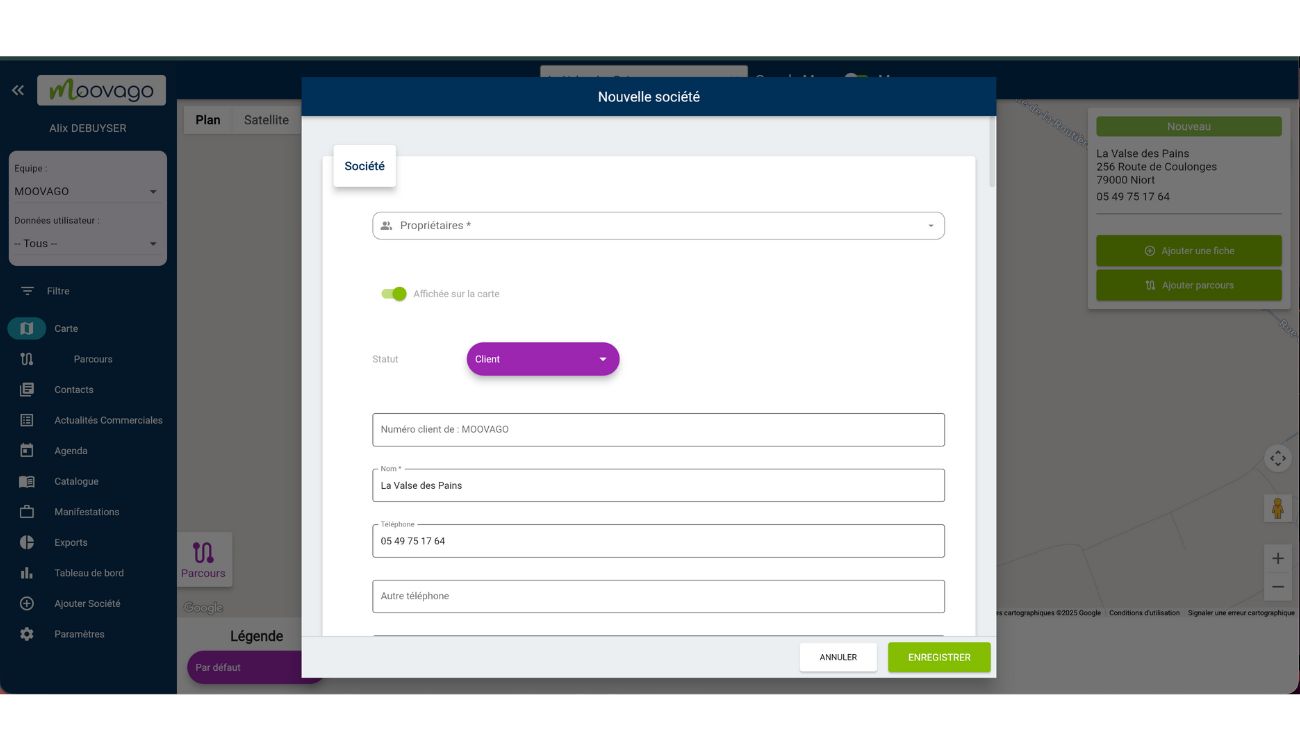
The pop-up window transforms into a company file with several fields to fill in. When you have finished, click on "REGISTER".

saving a company file

Your new company is now registered in Moovago!
Click on "Go to file" to access your company.
access your new company file

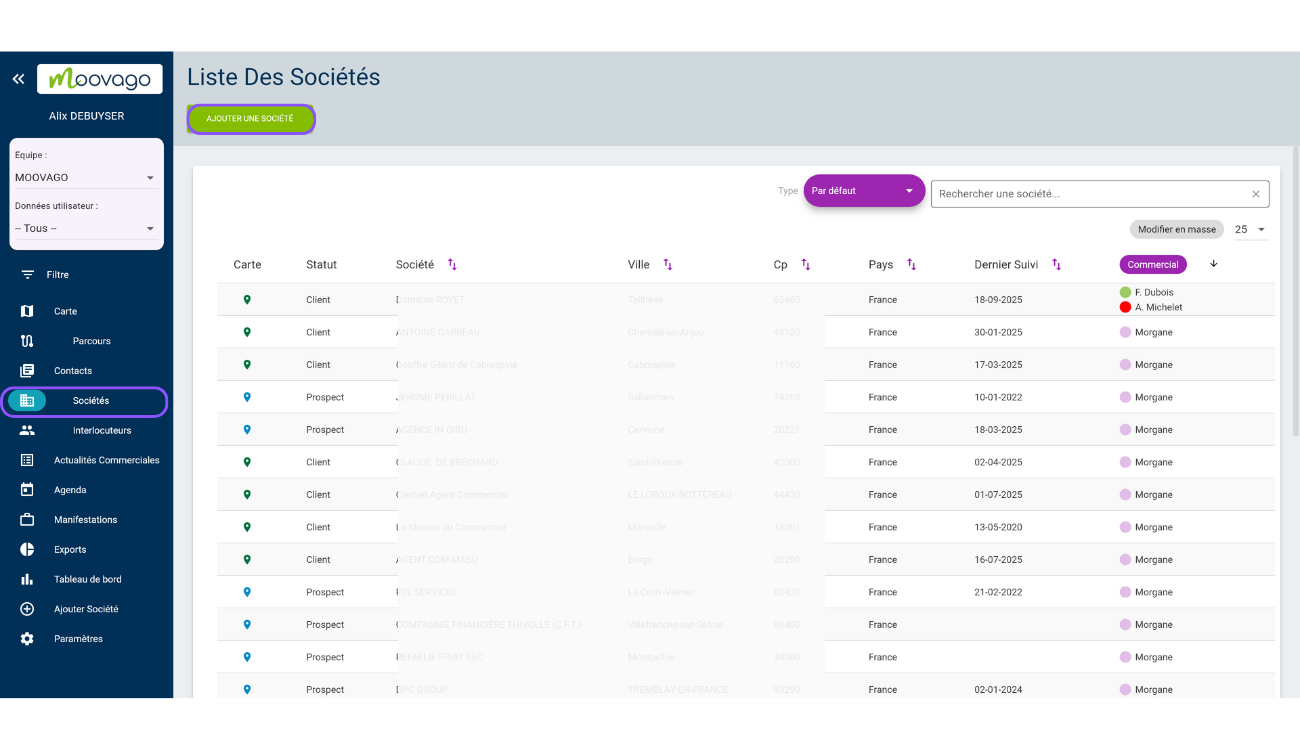
2nd method: manually, via the Companies tab

add a company via contacts

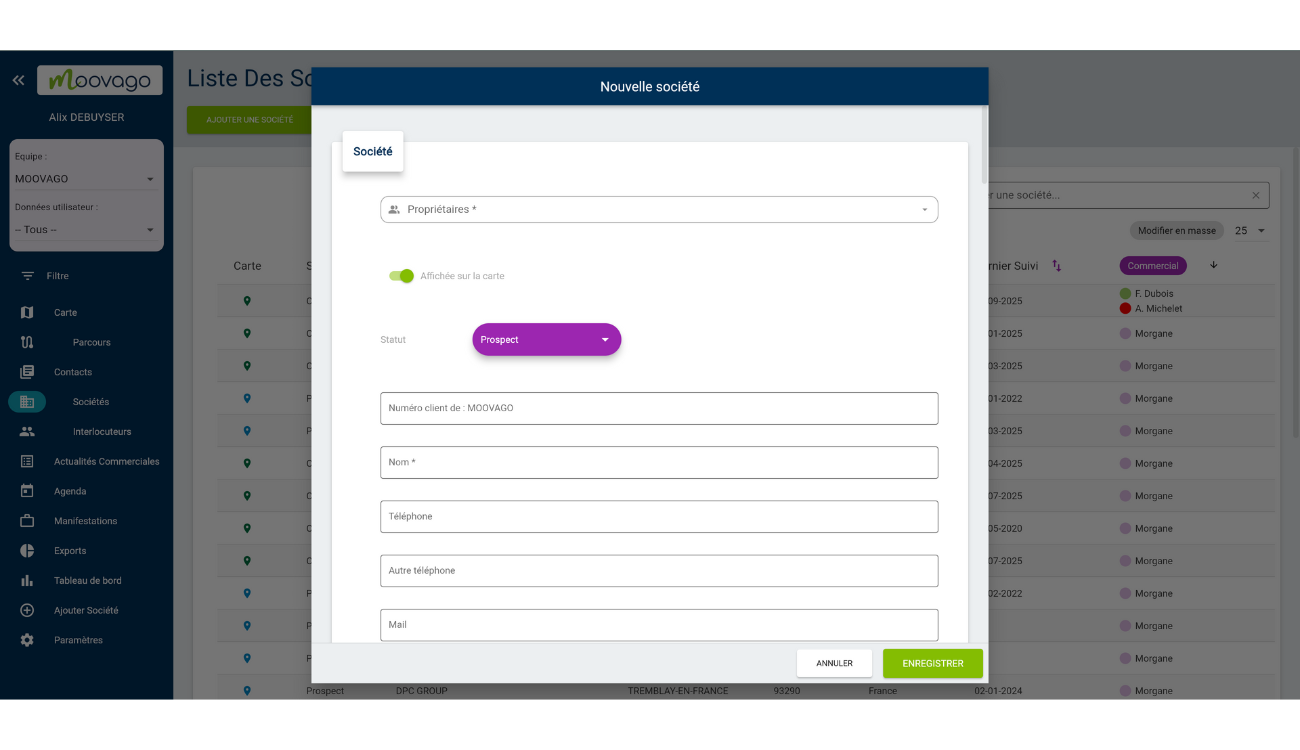
A pop-up window opens: enter all the information about this new company.
Once finished, click on "Save".

register a new company

You can now find your new company in the list of all your companies.

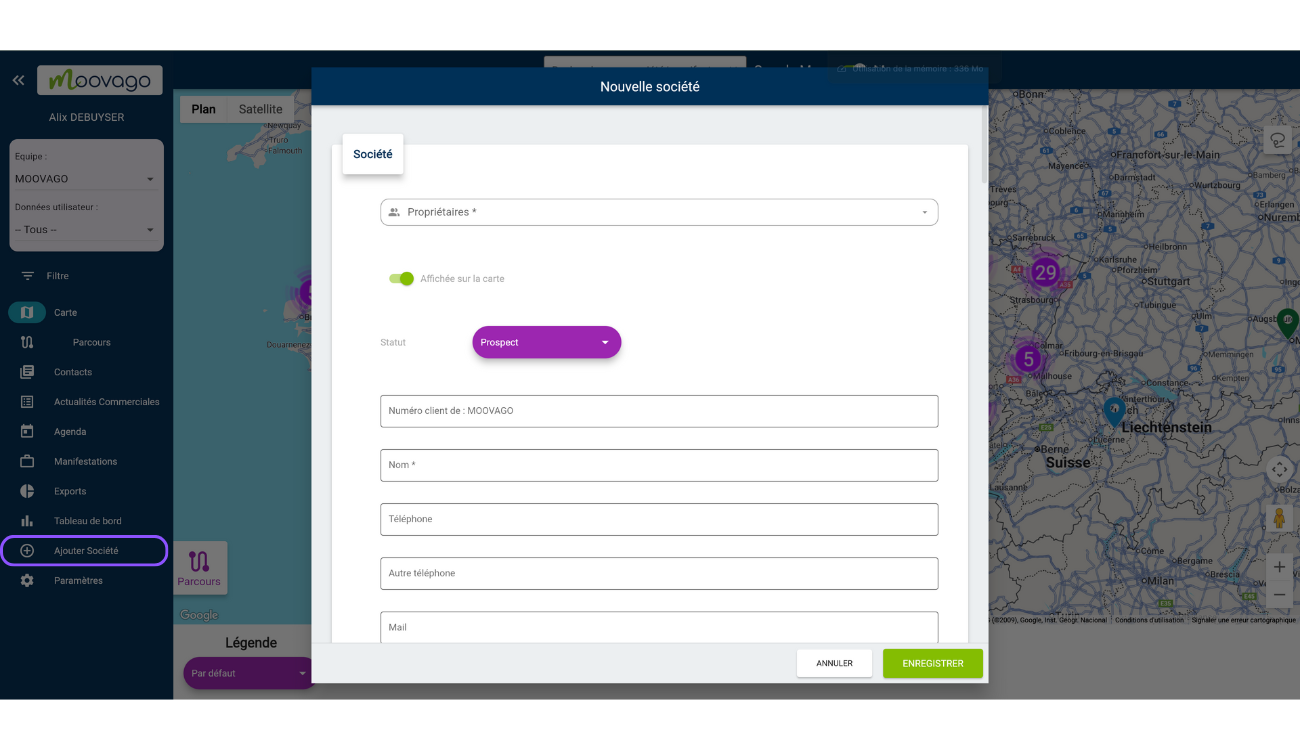
3rd method: via the "Add Company" shortcut

A pop-up window opens with empty fields; fill them in with your new company's details.

add a company

For the address: scroll down the page and enter the address of the company you wish to register on the map.

The address fields update automatically according to where you place the cursor on the Google Maps map.

Customer file address in Moovago

Once all the information has been entered in the pop-up window, click on the "Save" button.