Updated on 12/11/2025

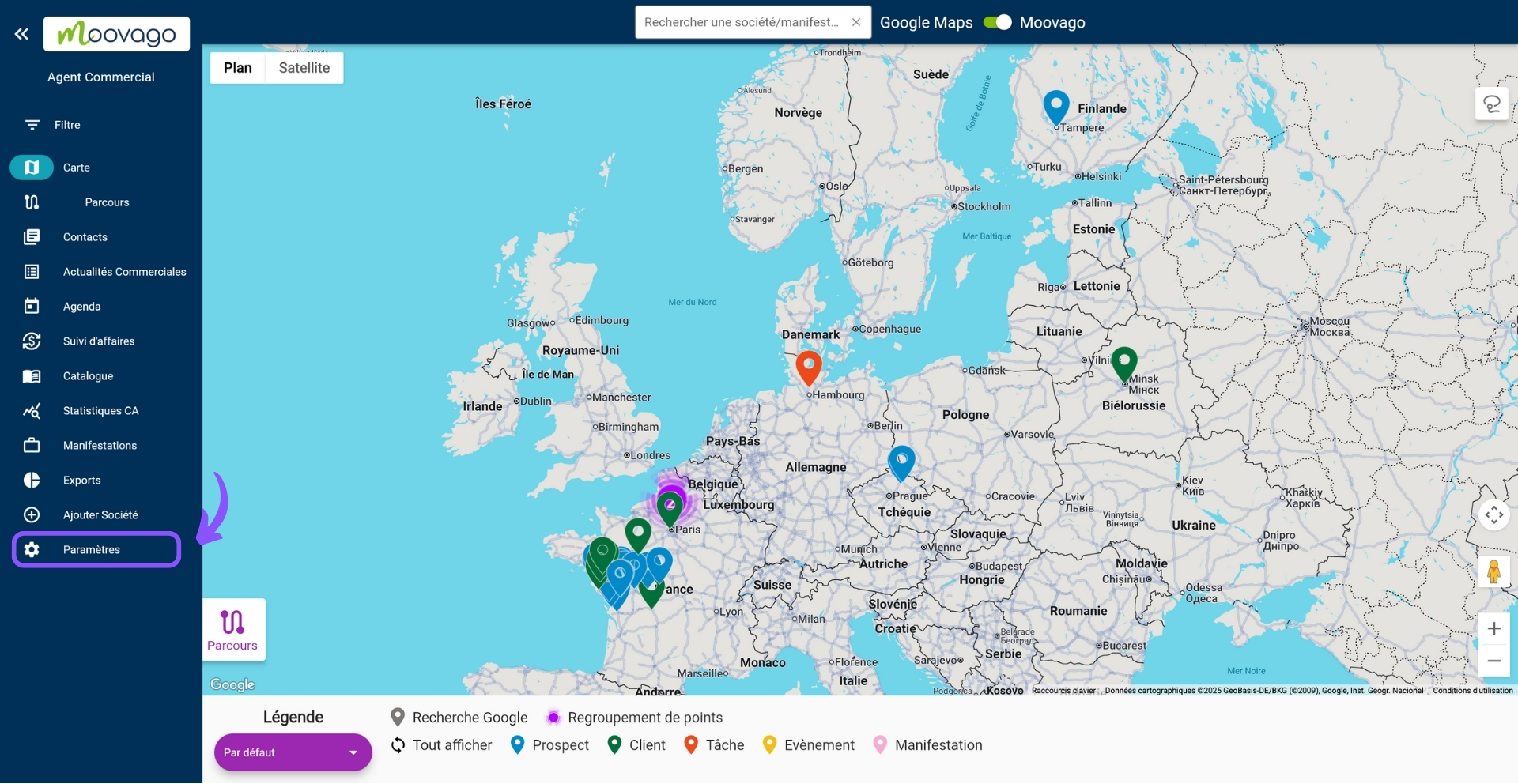
Go to "Settings".

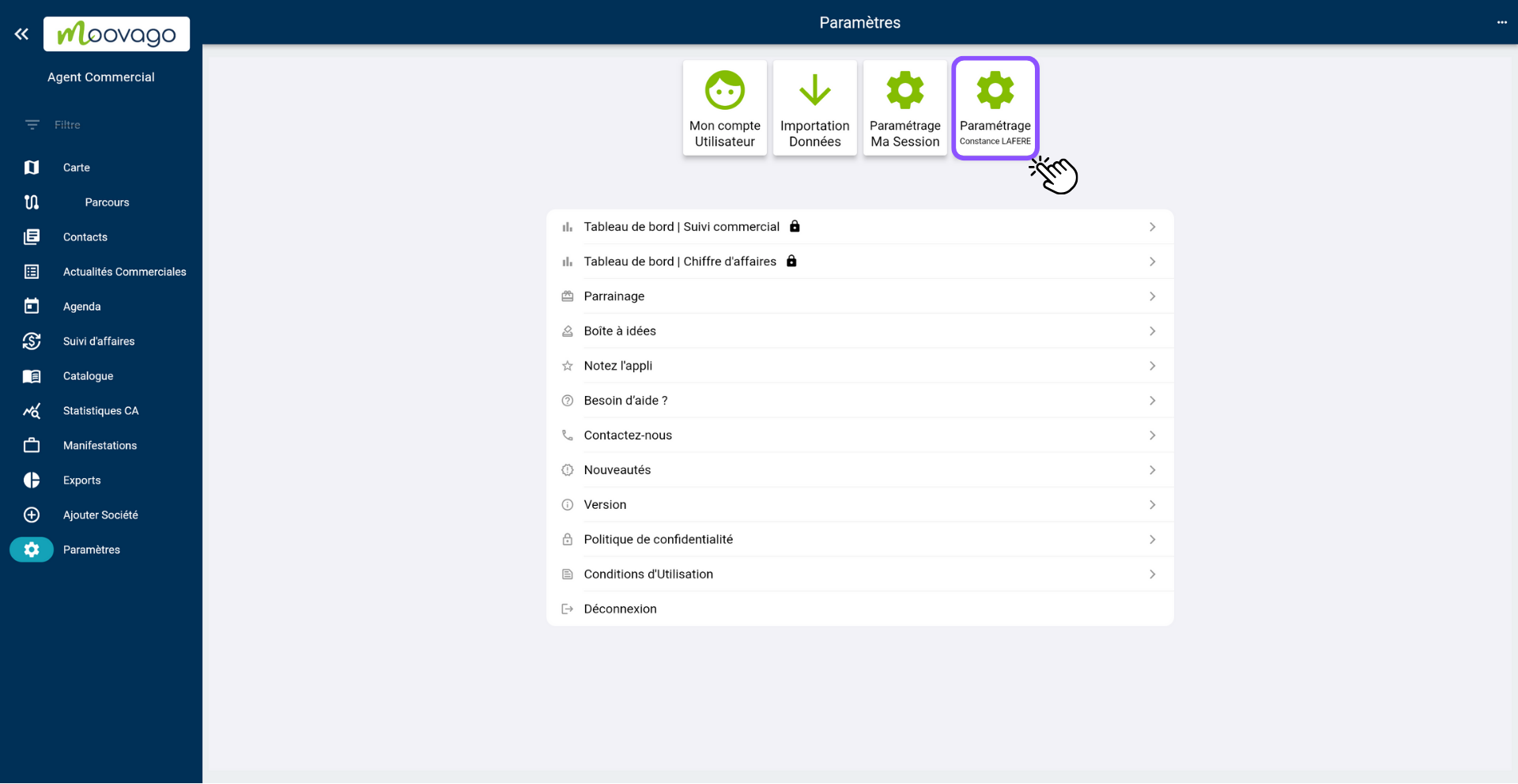
Go to group settings.

Moovago Settings tab

Go to the segmentation tab.

Moovago segmentation settings

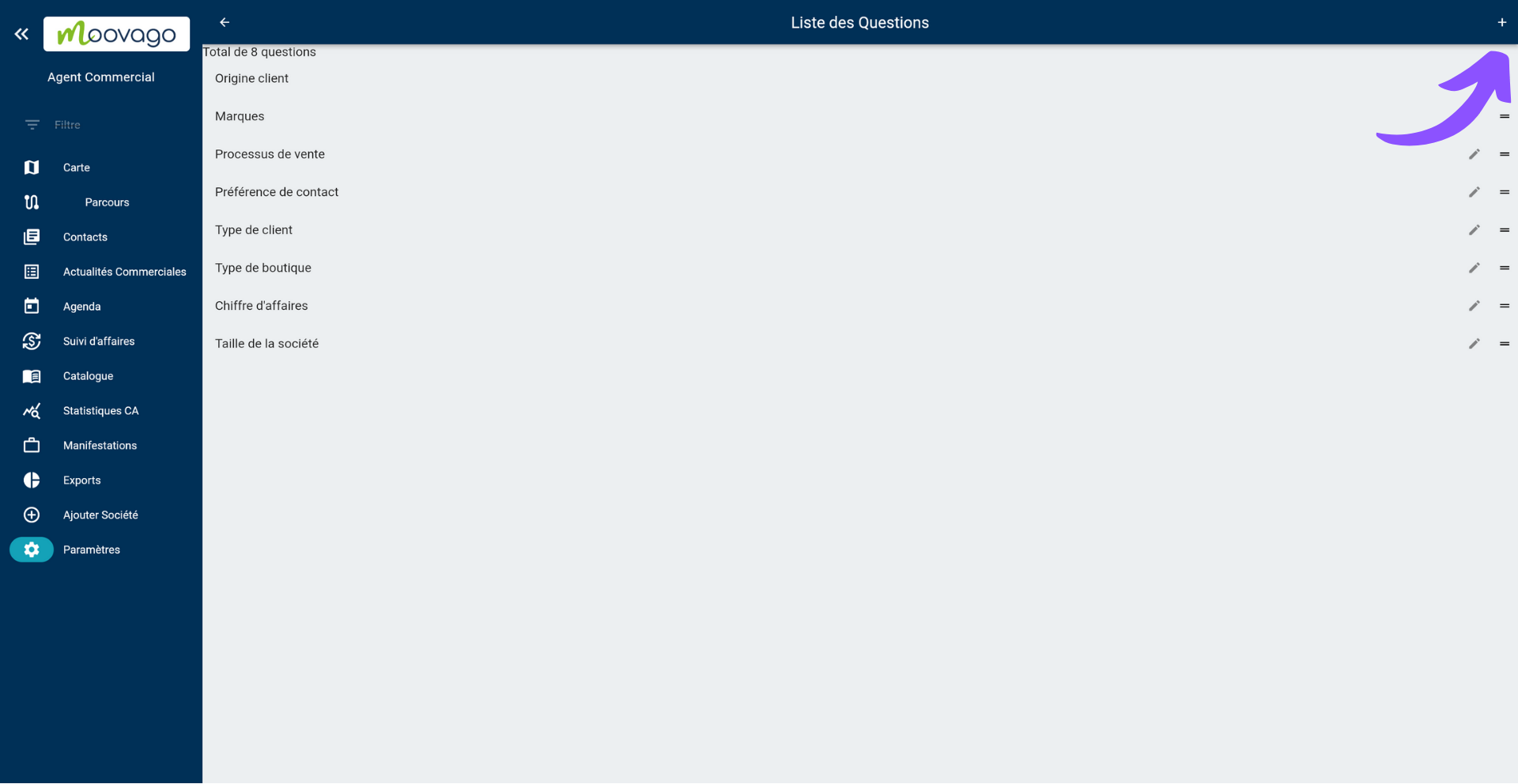
In this tab, you can see all the segmentations already defined.

Click on the "+" button to add a new segmentation.

Add customer segmentation to Moovago

Name the question the segmentation will answer and save.

useful information customer card

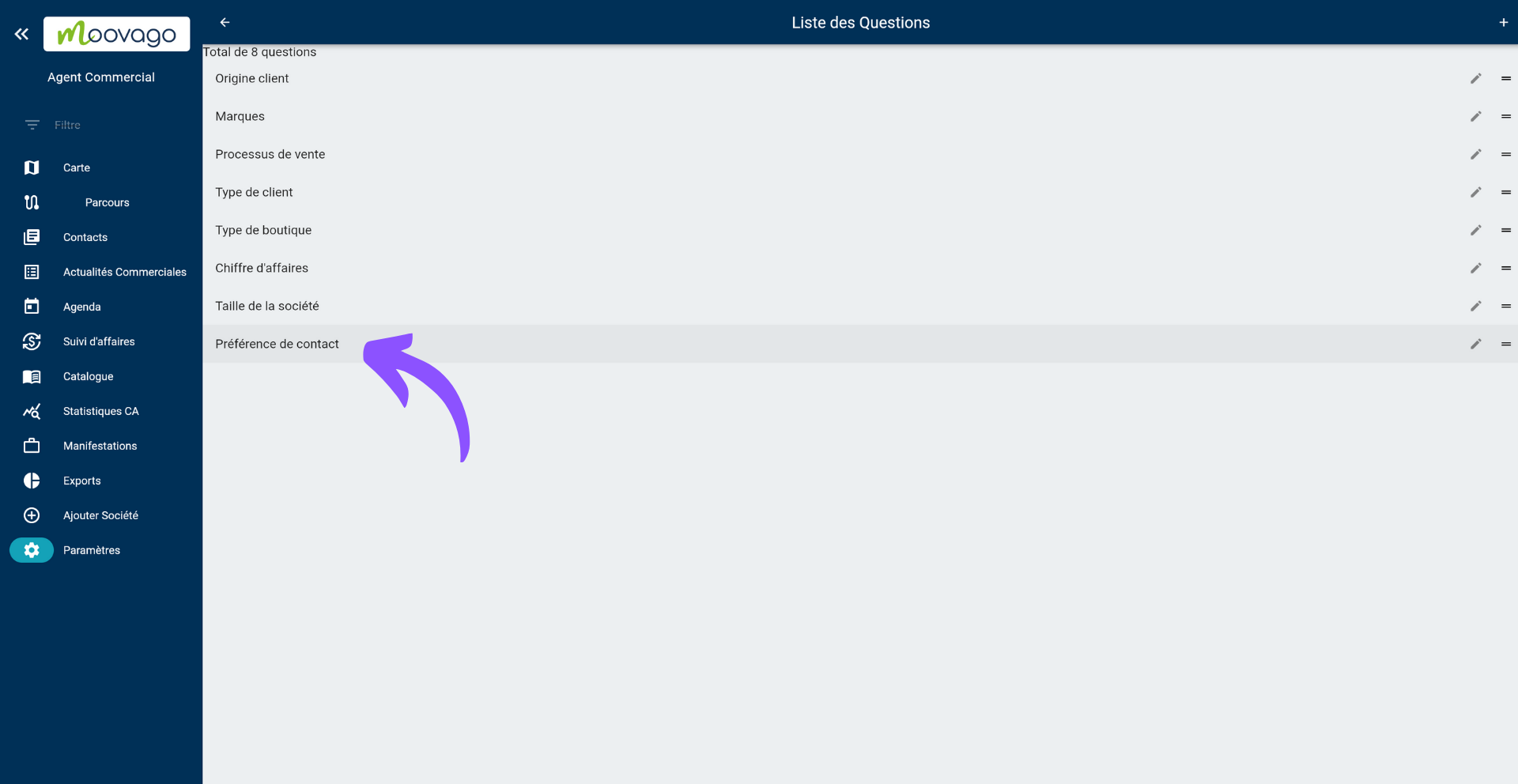
Click on the new segmentation.

Choose a customer segmentation to configure

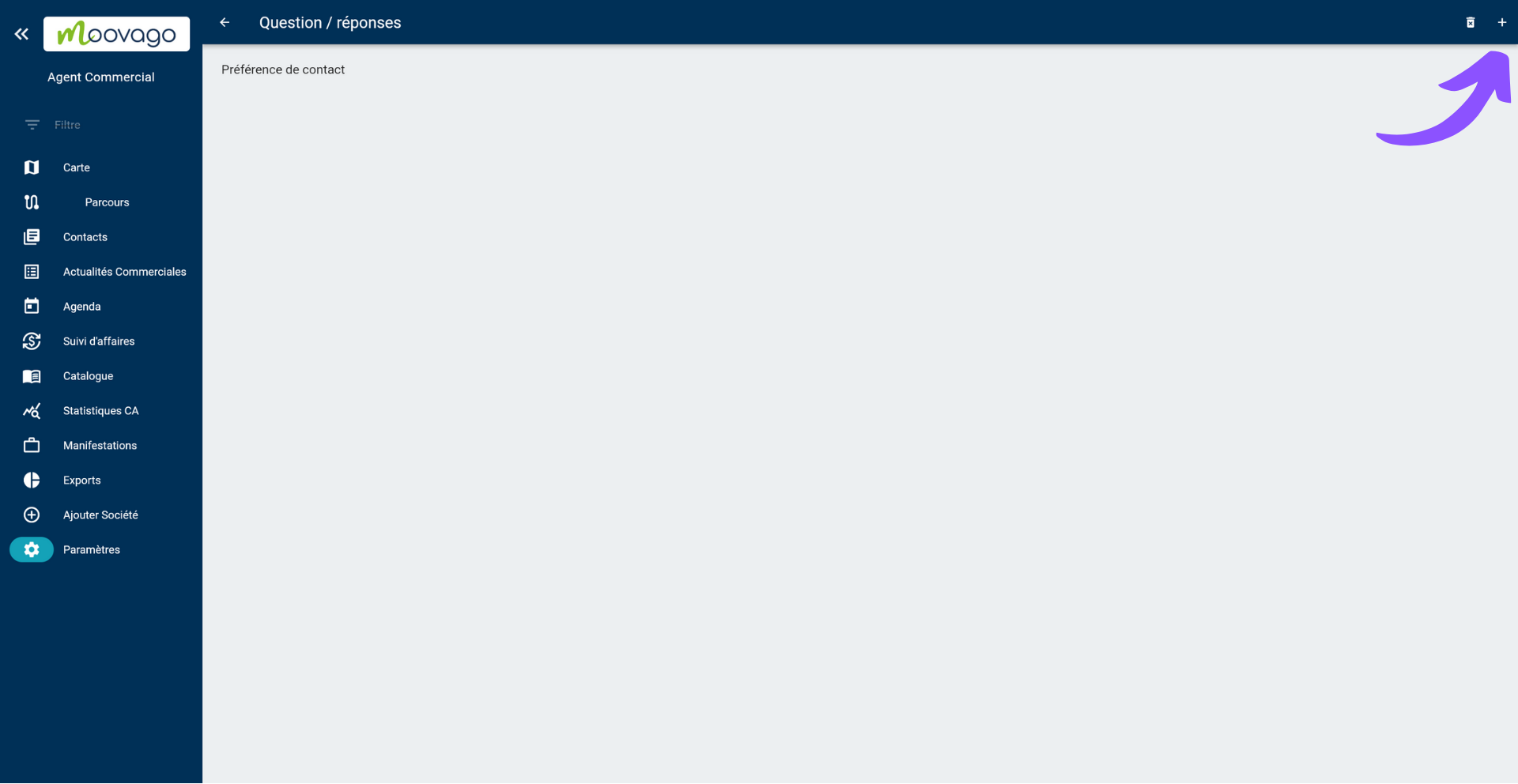
Click on the "+" button.

Moovago customer segmentation management tutorial

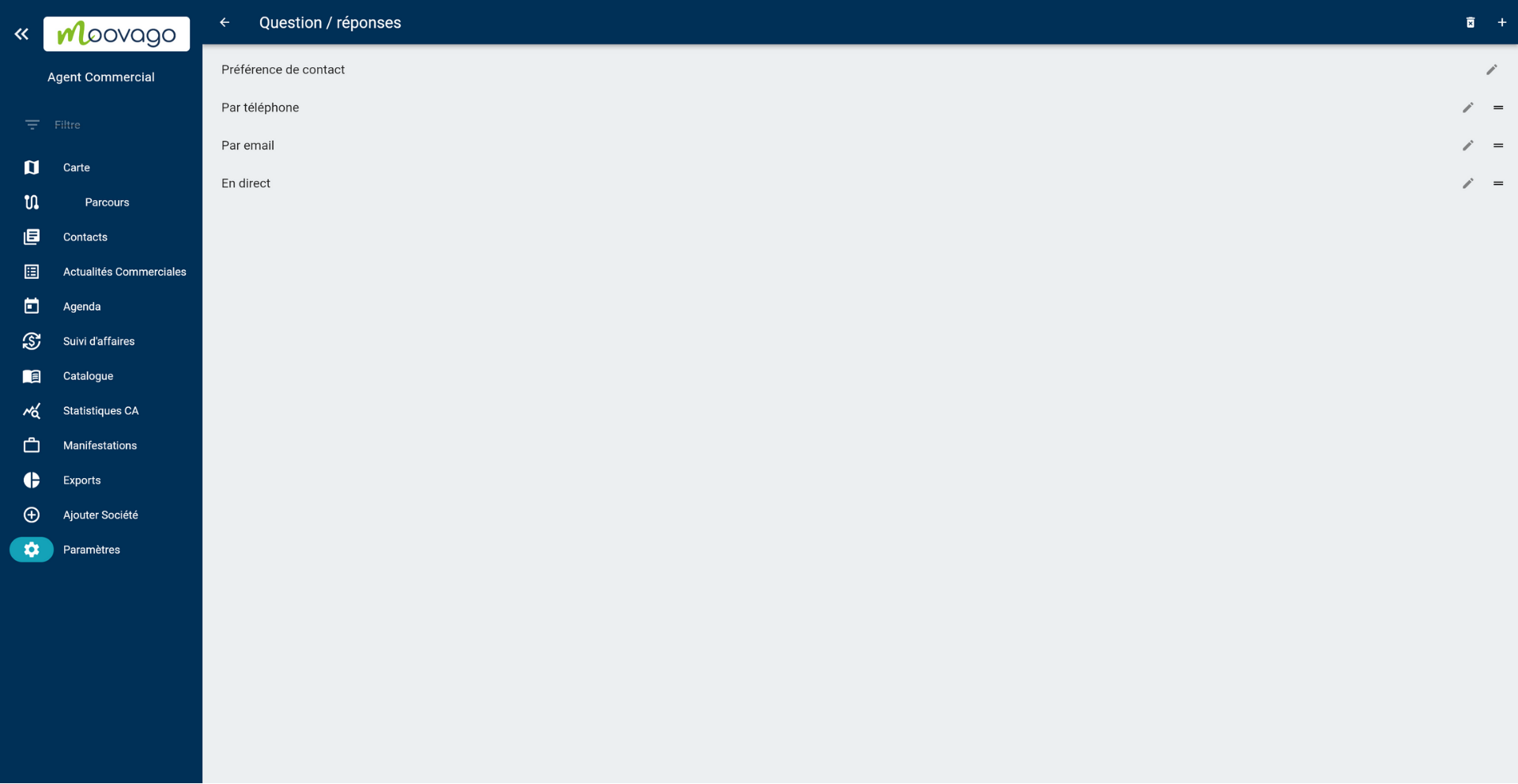
Add a new answer and save.

Example of a customer file segmentation criterion

Record as many answers as you need.

Moovago customer segment list

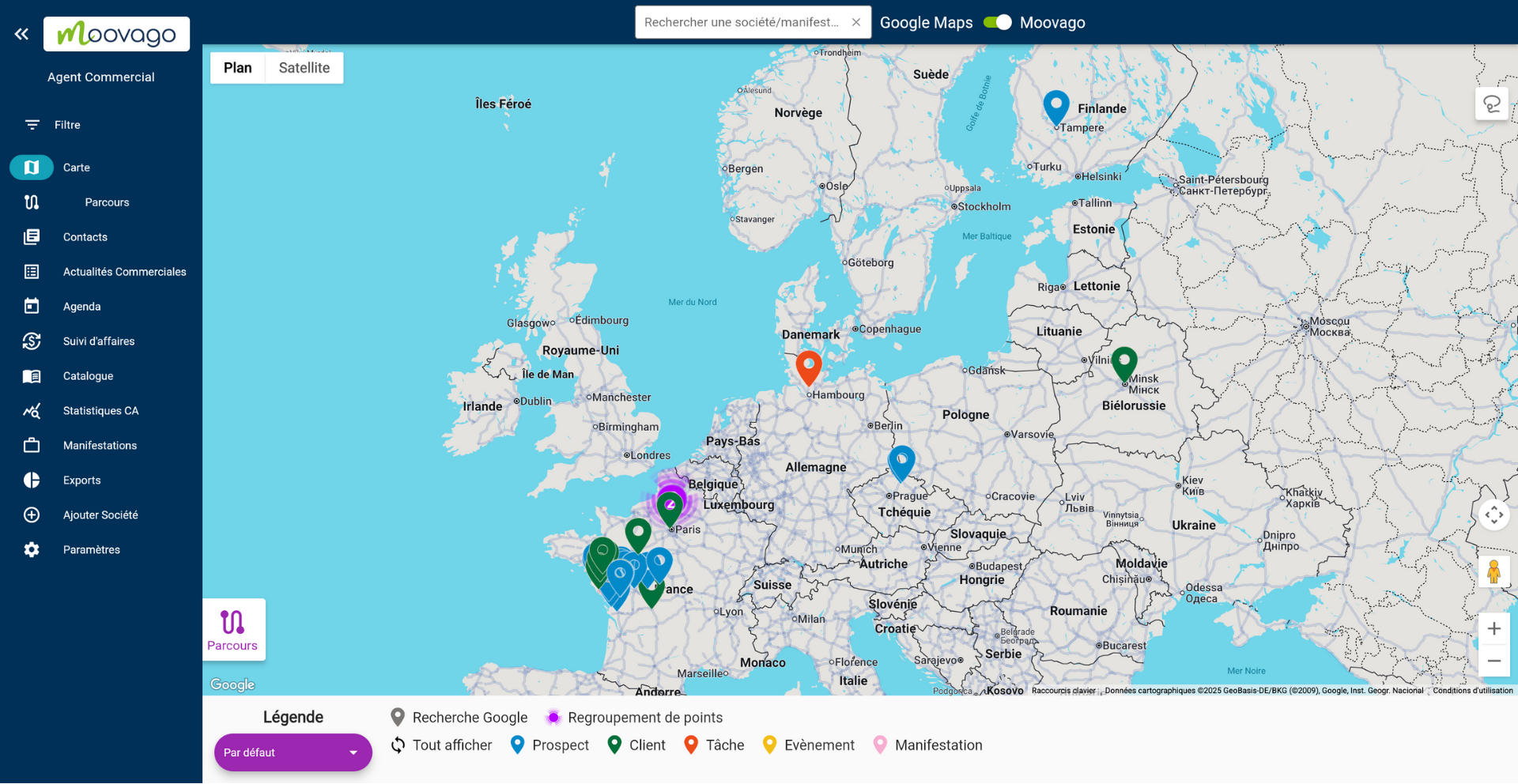
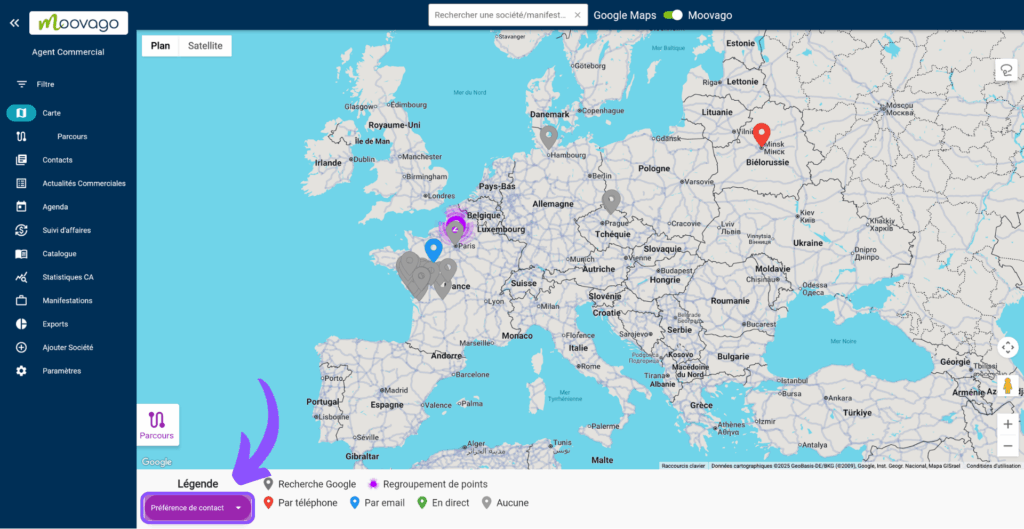
Go to map

Note: your segmentation questions/answers can now replace the default Moovago legend on the map.

Discover keywords that complement your segmentation.

Unlike segmentation, several keywords can be selected for the same company.

Go to "Settings".

Go to group settings.

Moovago Settings tab

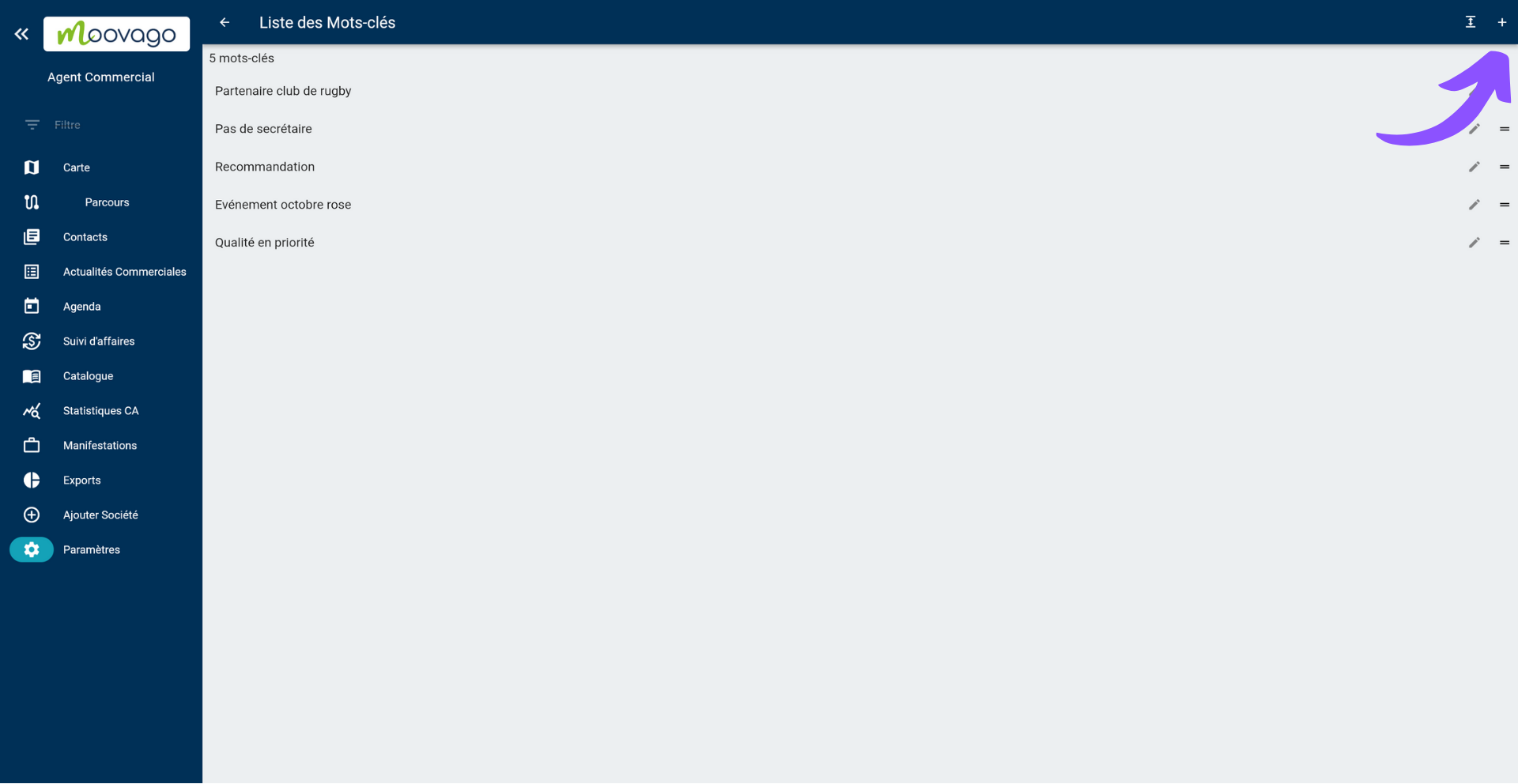
Click on "Keywords

Set your keywords in Moovago

Enter new keywords.

Unlike segmentation, several keywords can be selected for the same company.

They will enable you to add useful information to company files, without this information being essential for sorting and categorizing your customer or prospect database.

Enter segmentation information for a company.

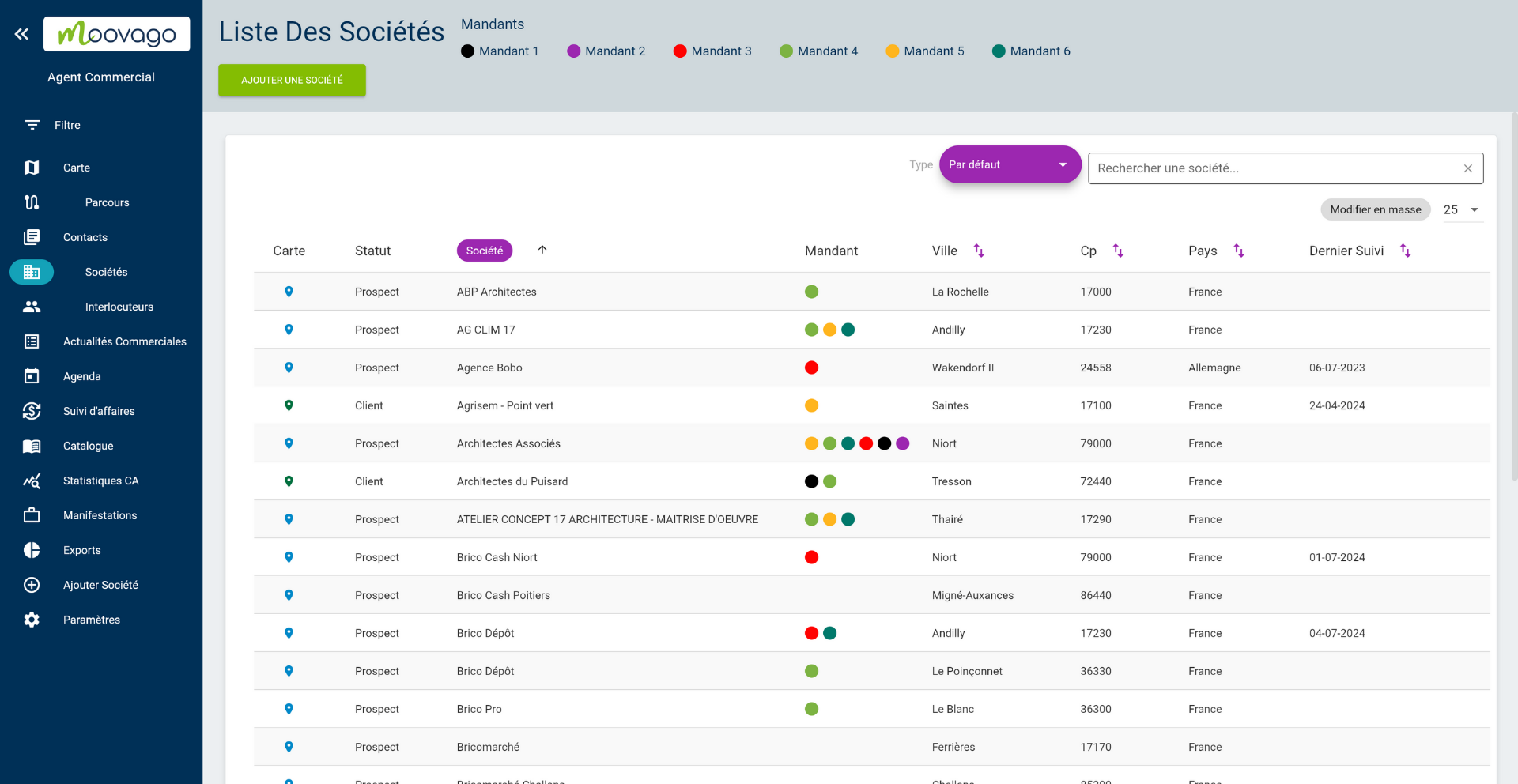
Once you have correctly filled in the segmentation and keyword fields, go to the company list.

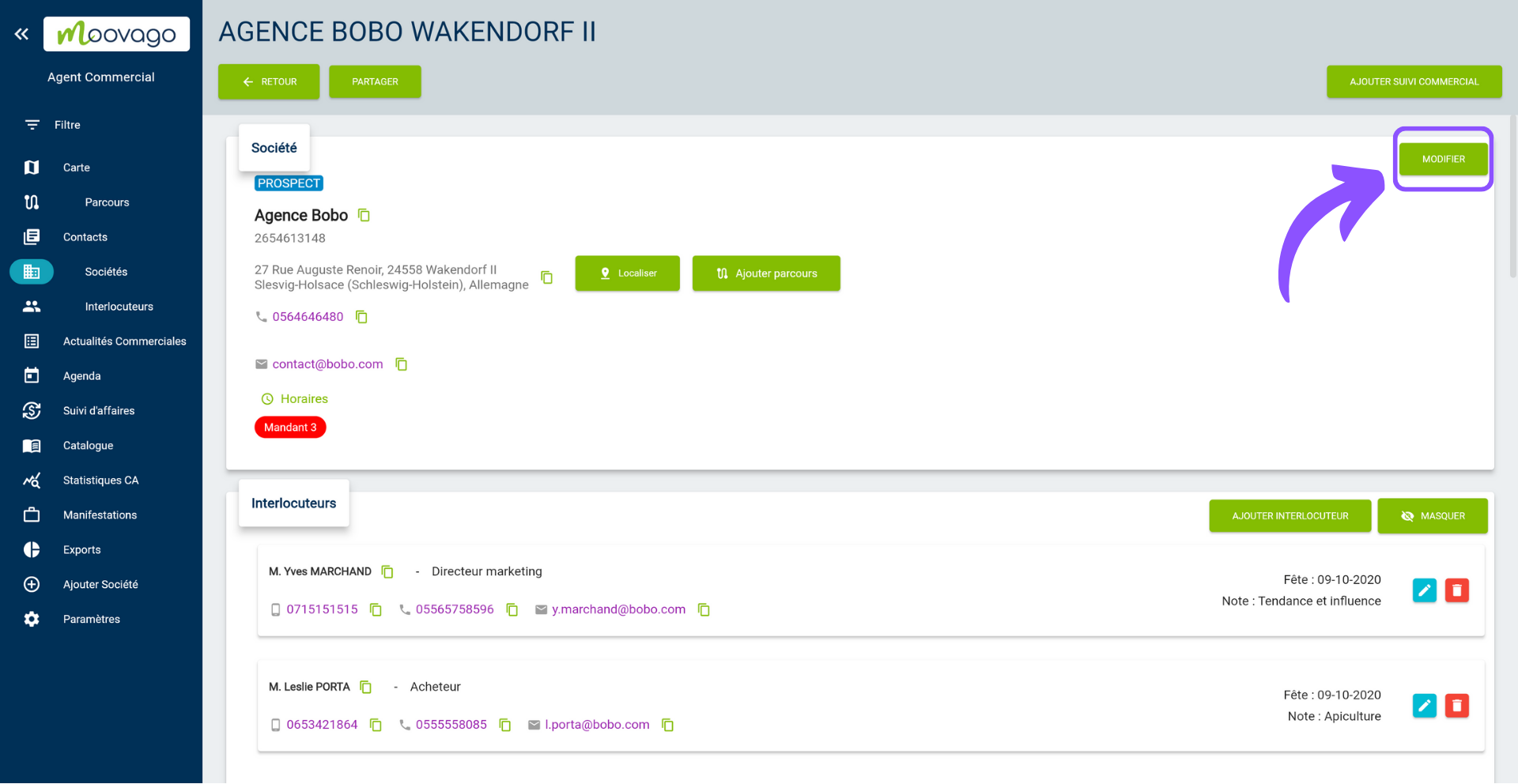
Select the company you wish to modify and click on modify.

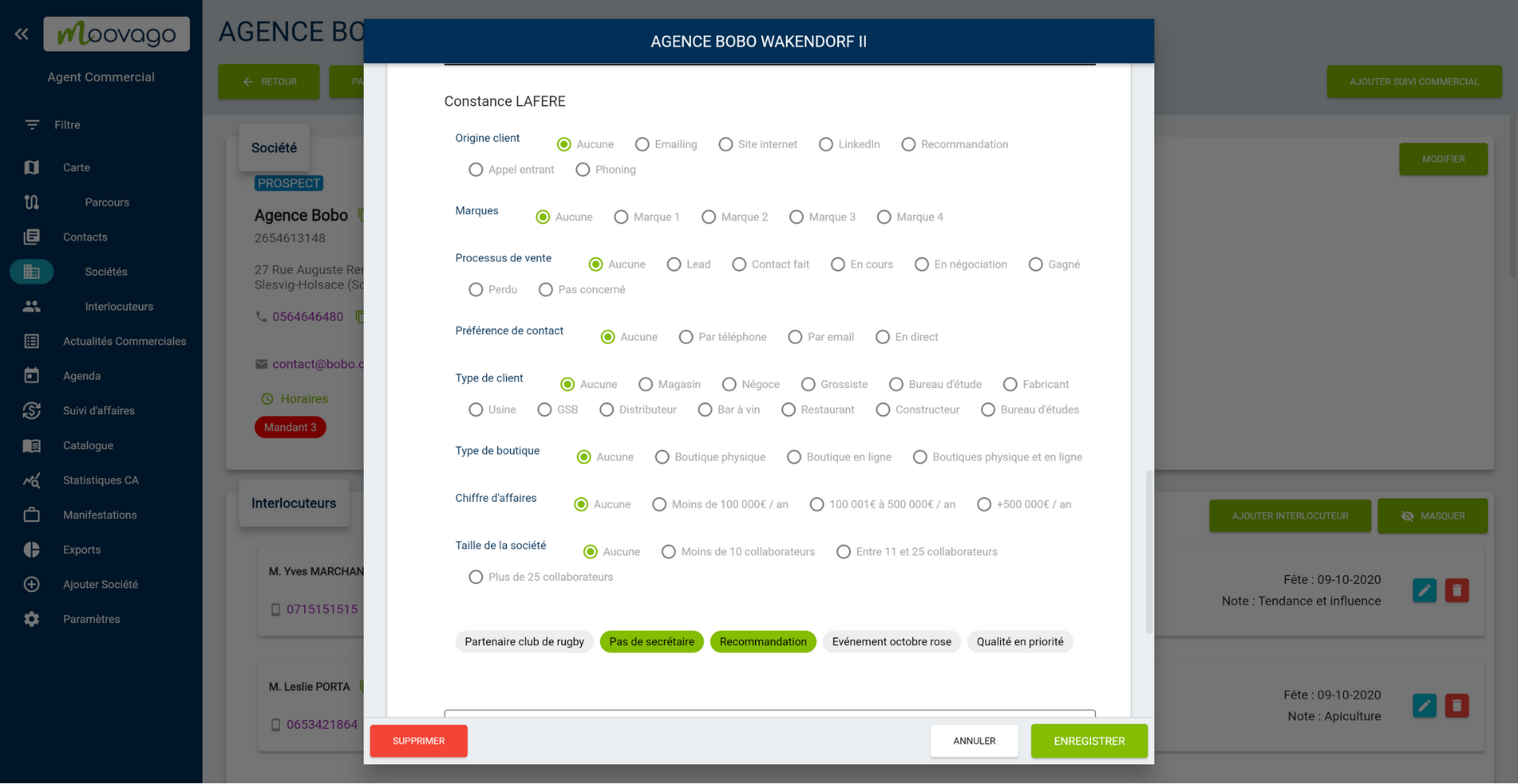
Then complete the company file as required.

As you scroll down the page, you’ll see new segmentations and keywords. You can select them and save this company.