


Updated on 14/11/2025
On the Moovago map, you can add companies (i.e. businesses) to your Route (i.e. your business round).
However, you can also use Google search to add a postal address to your Route.
Step 1: Activate Google search on the Moovago map
To add a postal address to a Moovago route, use the Google search function integrated into the Moovago map.
To use this function, you can :
- Go via map: manually switch the cursor to Google, then use the search bar to type your search.
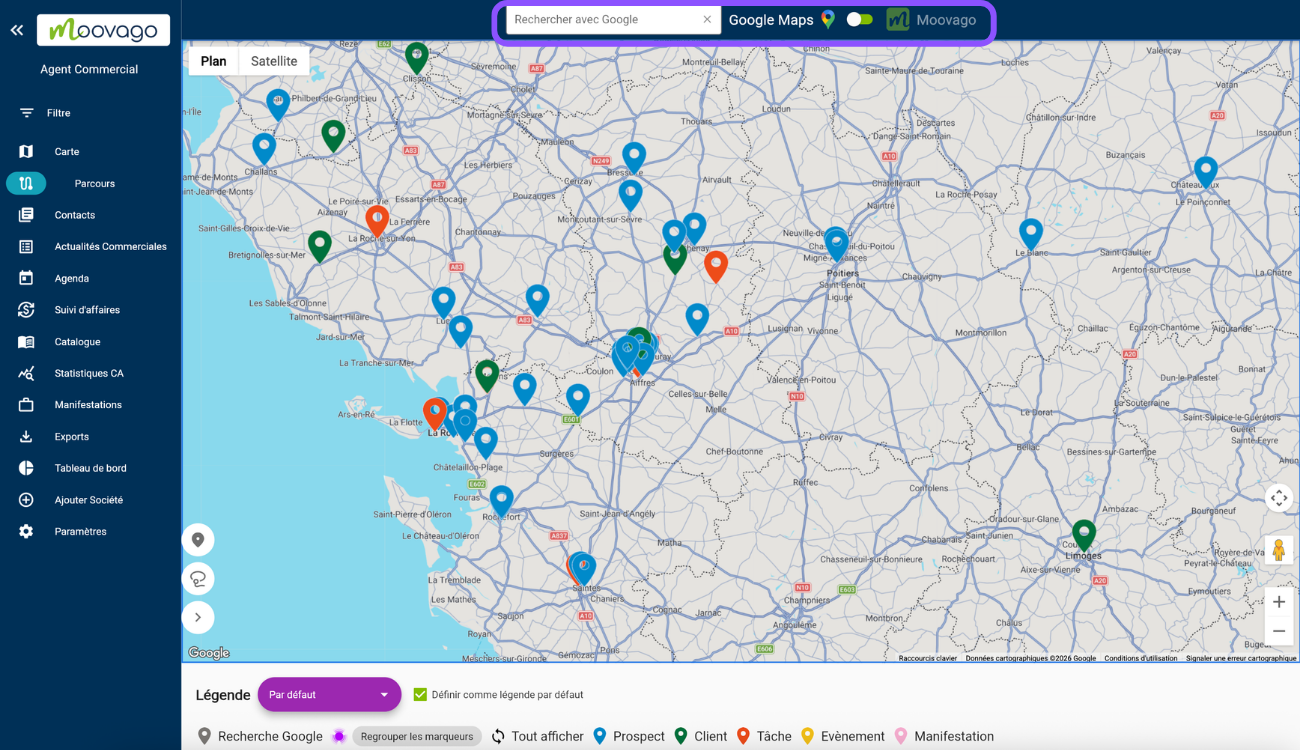
- If you are in the Routes area: when you create a new route or modify an existing one, you can click on the “Search” button. This will take you to the search bar at the top of the map. You will then need to manually switch the cursor to “Google Maps” before carrying out your search.

Step 2: Type the address you're looking for
In the search bar, type the address you require.
Note that entries can be more or less precise: for example “32 rue de la Terraudière Niort” or even simply “Niort”.
If you enter the beginning of the address (e.g. street number and street name), you’ll see suggestions appear below the search bar.
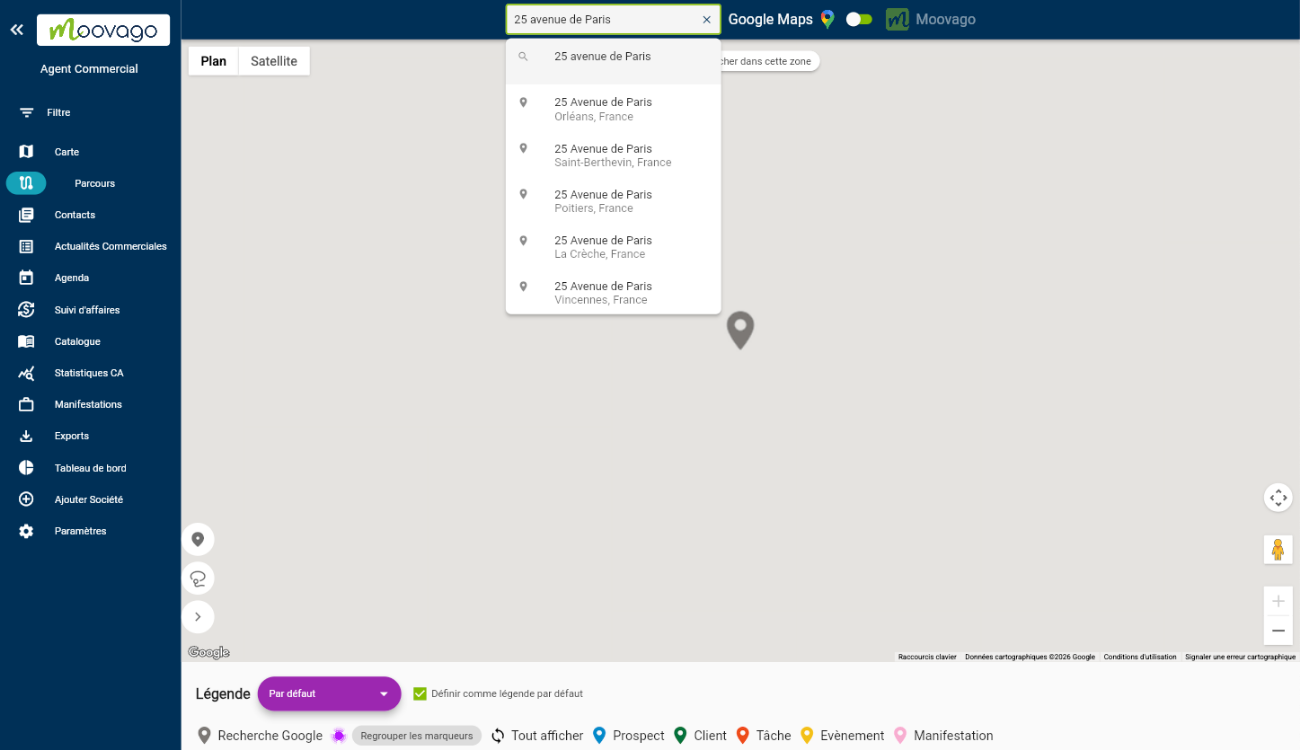
Then click on the search result you’re interested in, to display the corresponding marker on the map.
If you don’t see the result you’re looking for, don’t hesitate to specify the name of the town or the zip code.
Si vous ne voyez pas apparaître le résultat attendu, n’hésitez pas à préciser le nom de la ville ou le code postal.
To find out more about all the searches you can do via Google search, check out this article.
Step 3: Add the marker to the route
Once we’ve found your marker on the map, we’ll add it to the Route.
In the box that appears at the top right of the map, click on the “Add to route” button.
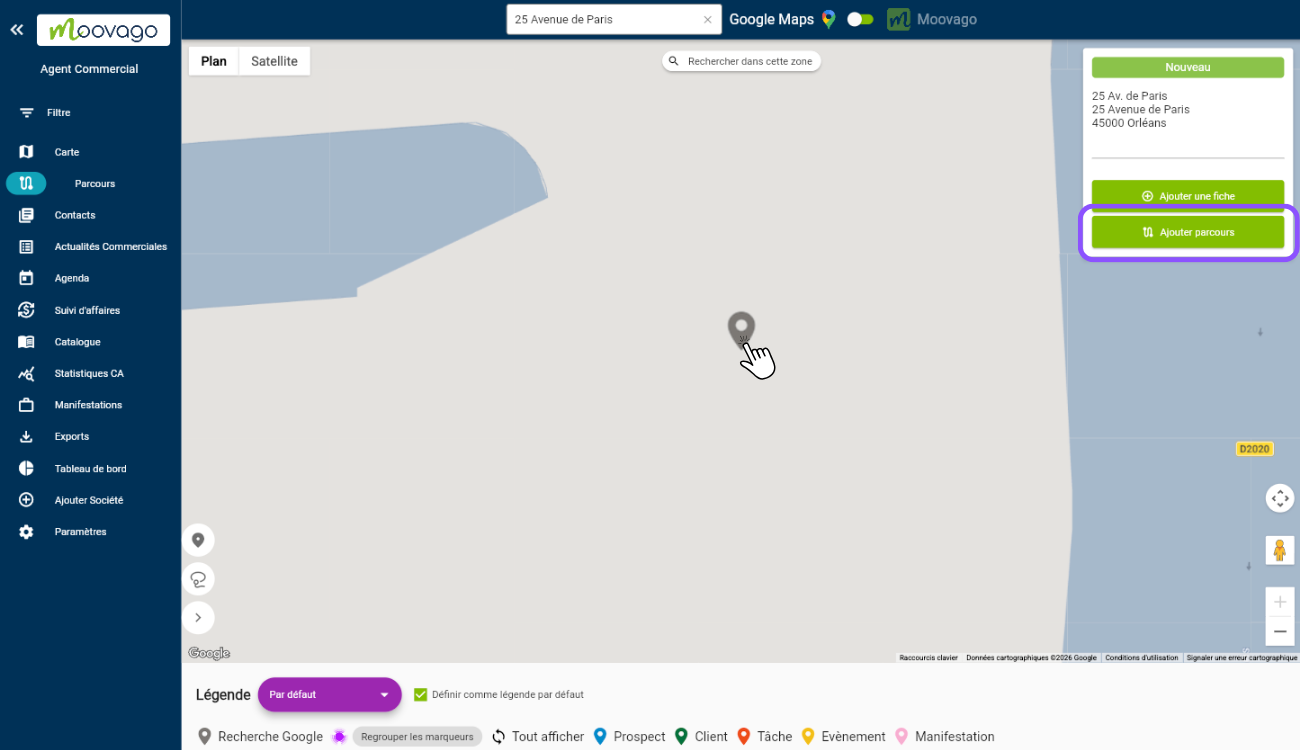
This marker will be added to your current Route, following the other stages if any. To find the stages currently in your route, go to the Route window (click on the “Route” insert at the bottom left of the map on mobile and computer).