What motivates us, what excites us. Discover our team and our values.
Want to join the adventure? Find out more about career opportunities at Moovago.
All features
Discover Moovago's interface and functions on video!
Updated 12/11/2025
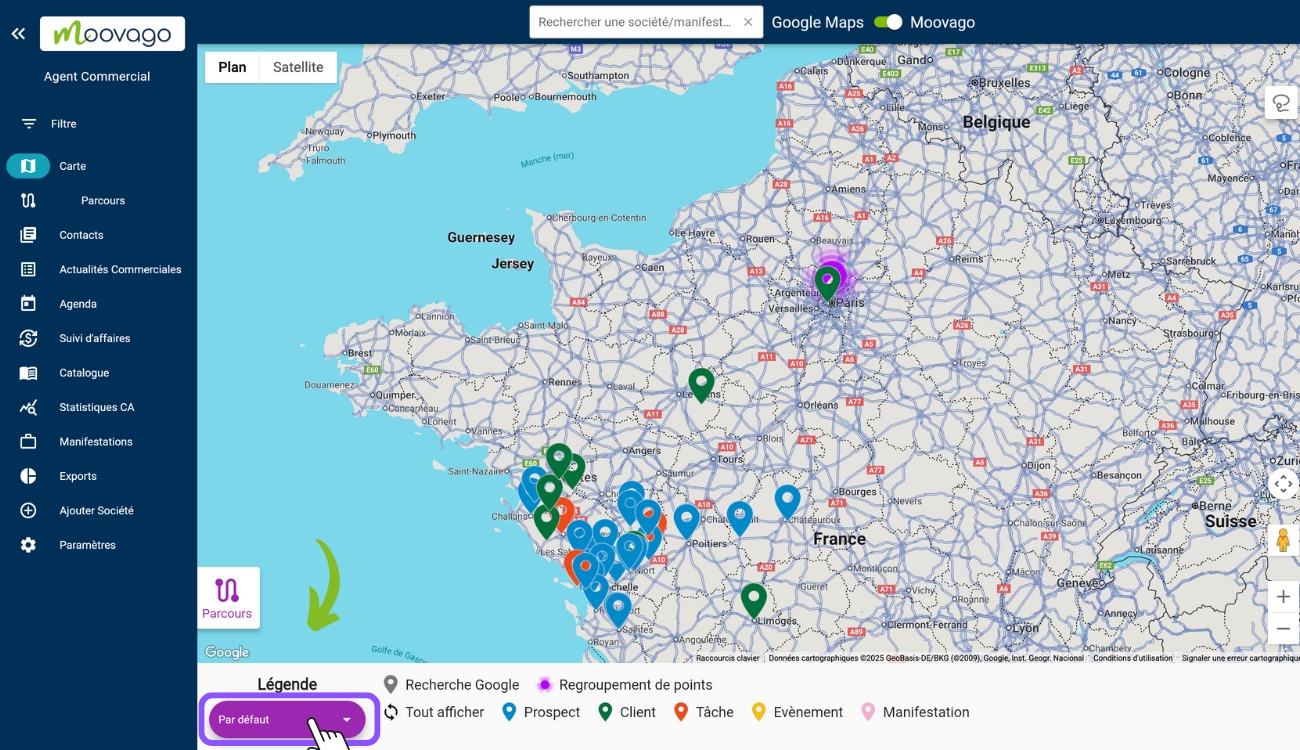
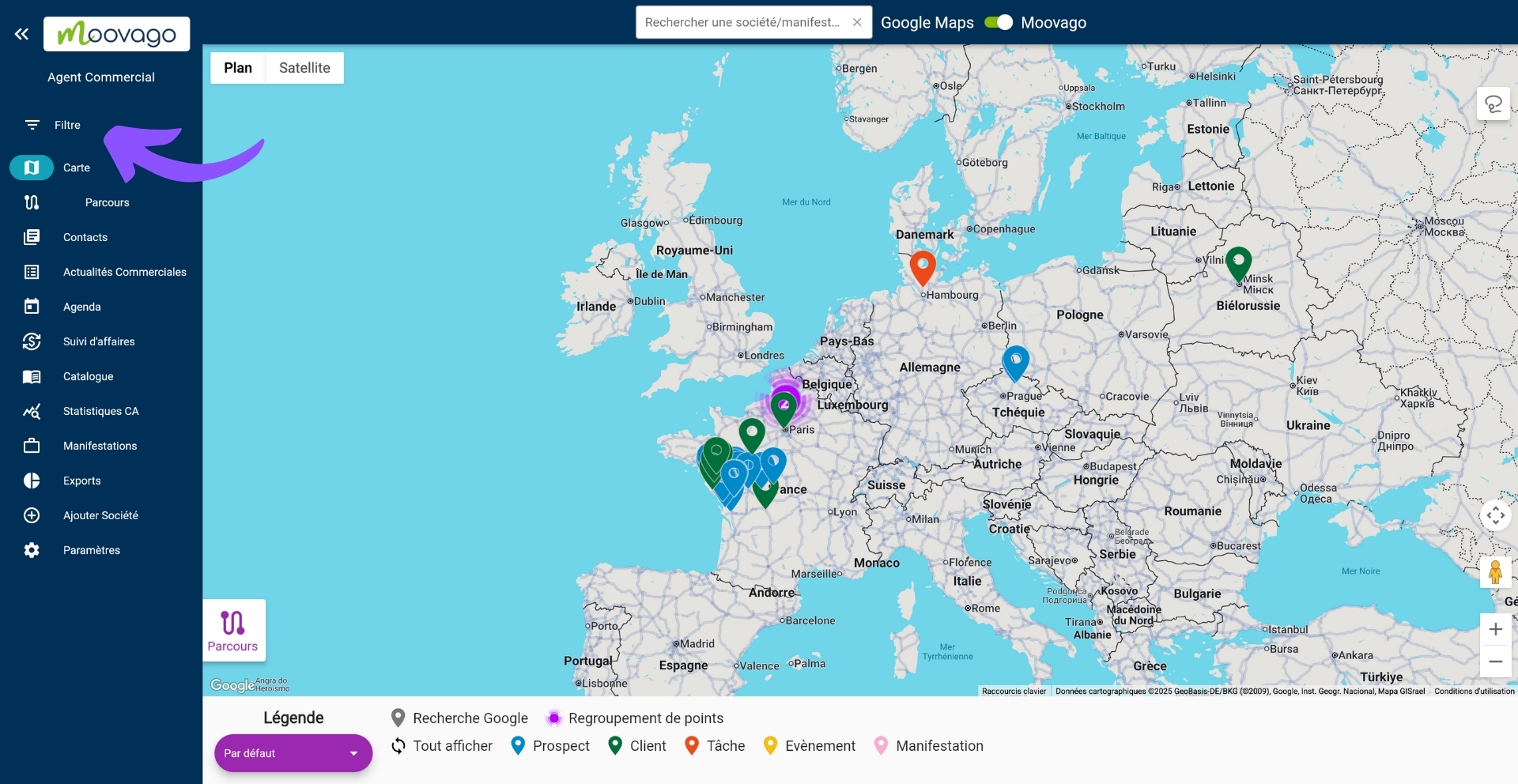
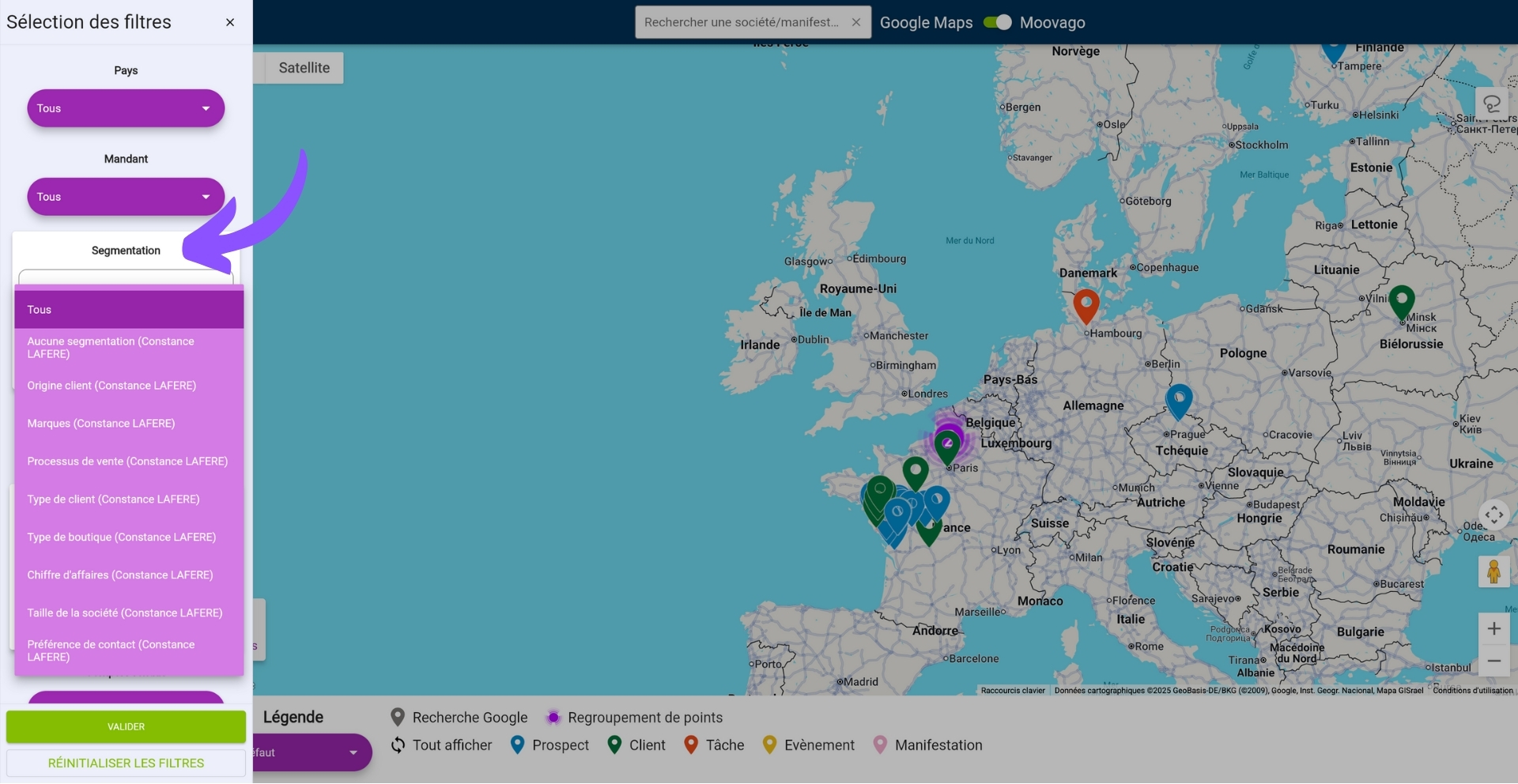
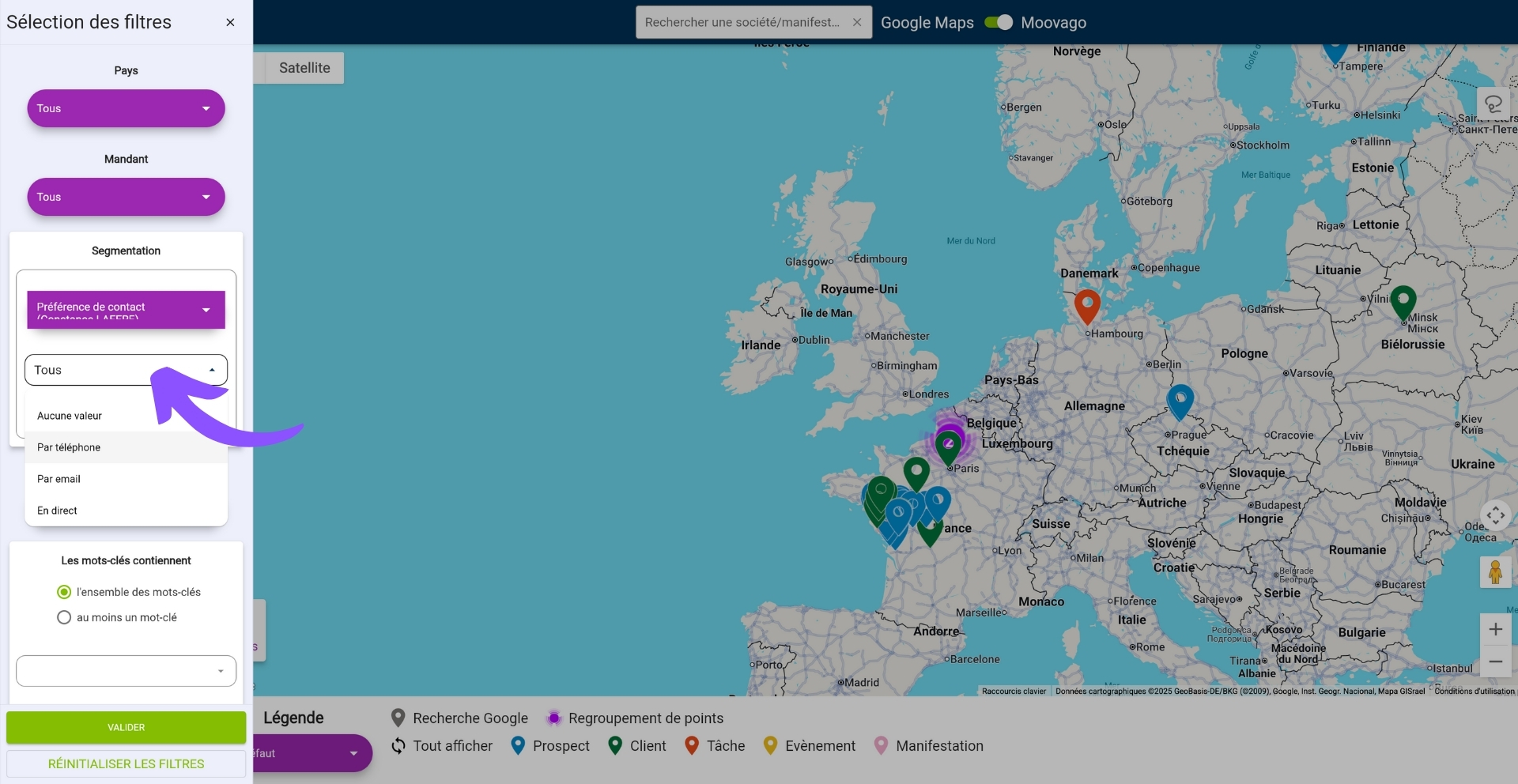
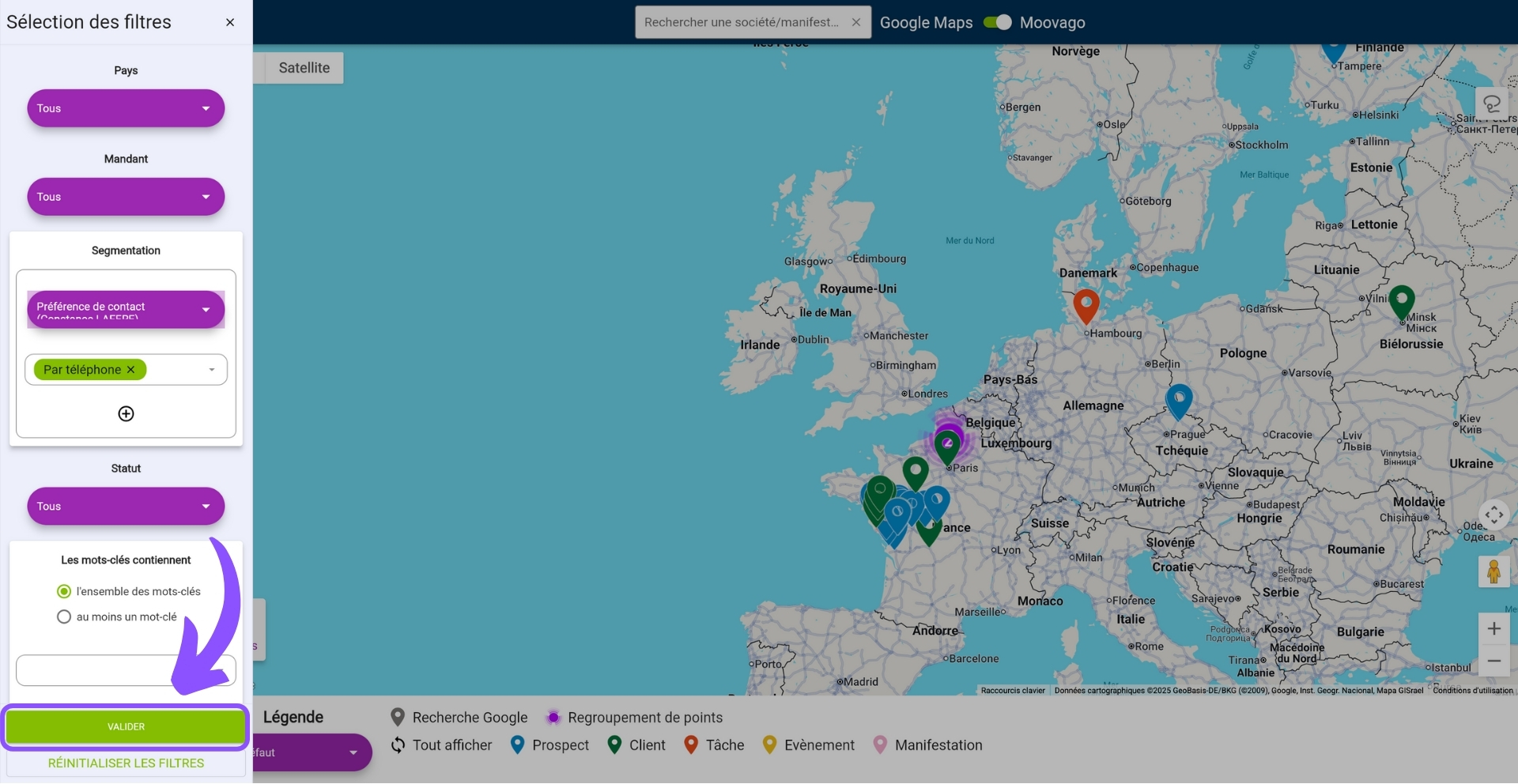
In this tutorial, find out how Moovago can help you filter a customer database by map.
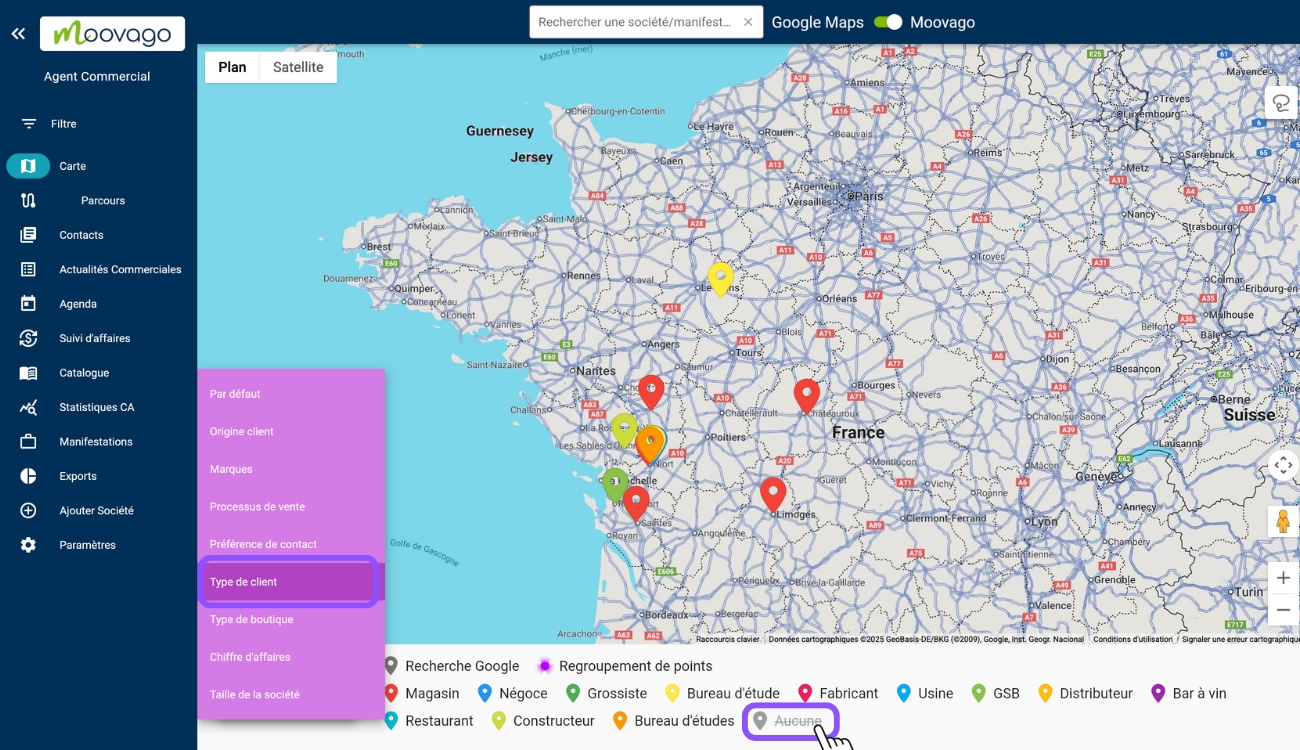
Moovago’s default color markers will change to represent the answer to the selected question.
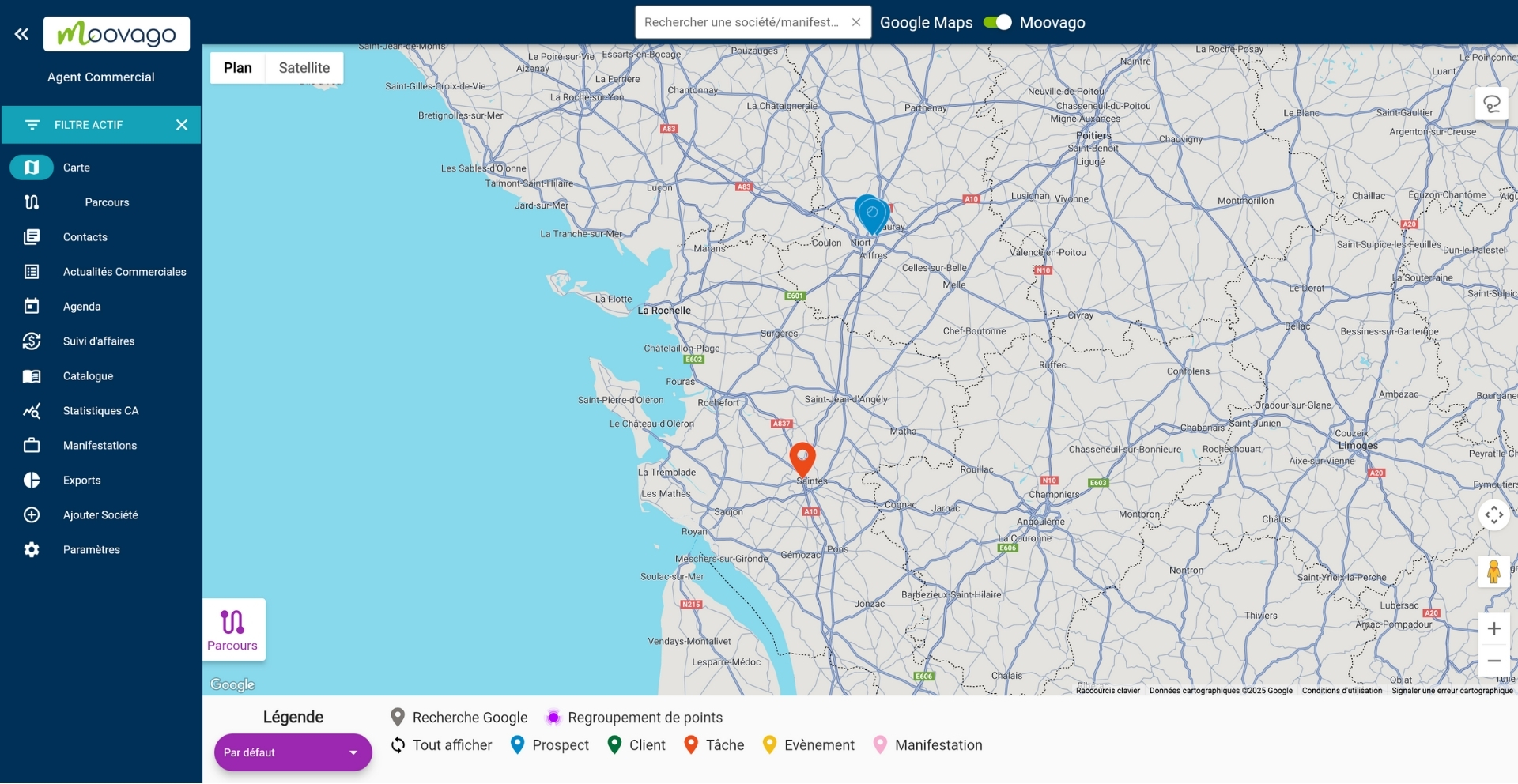
The companies shown on the map are those corresponding to the filter applied.
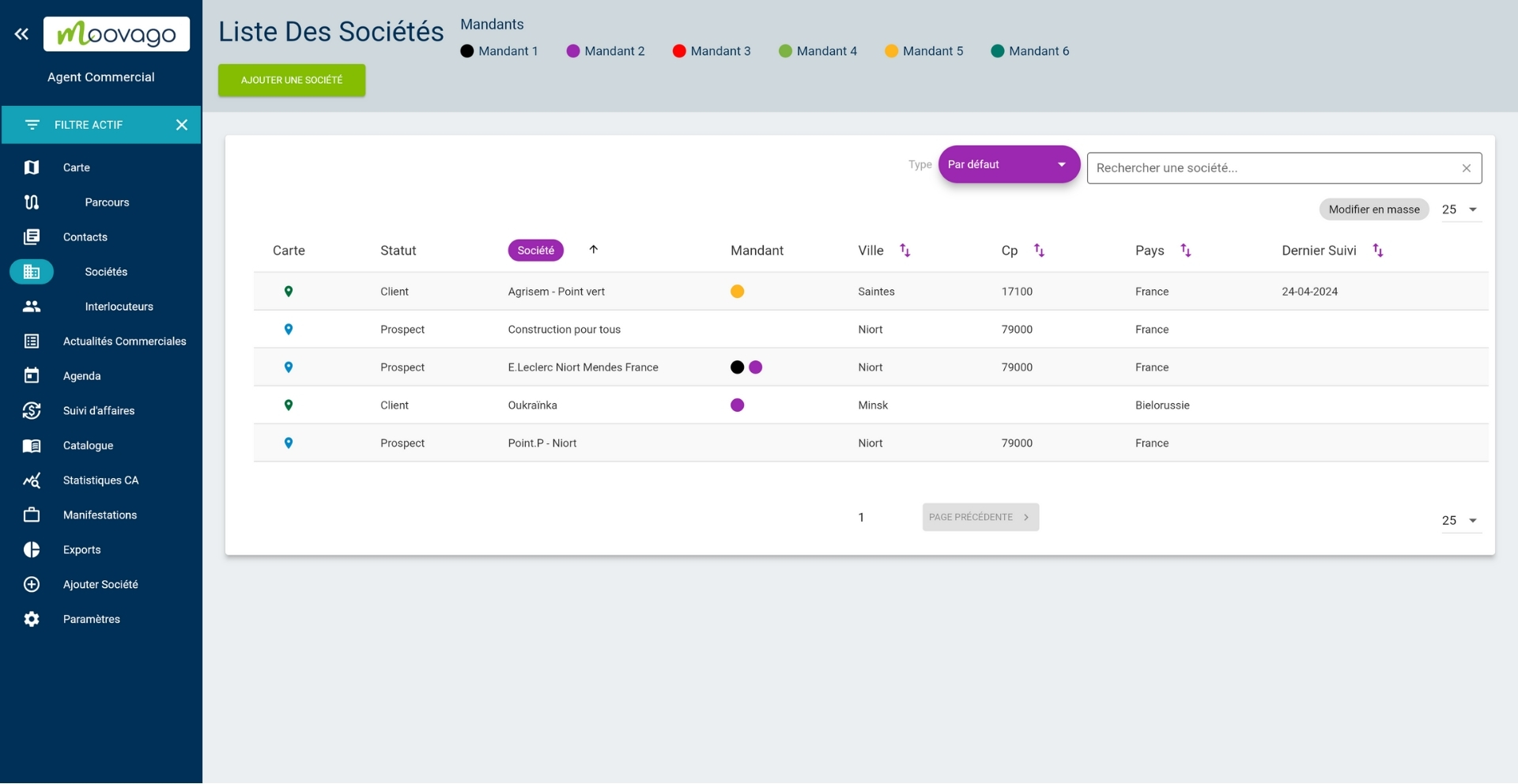
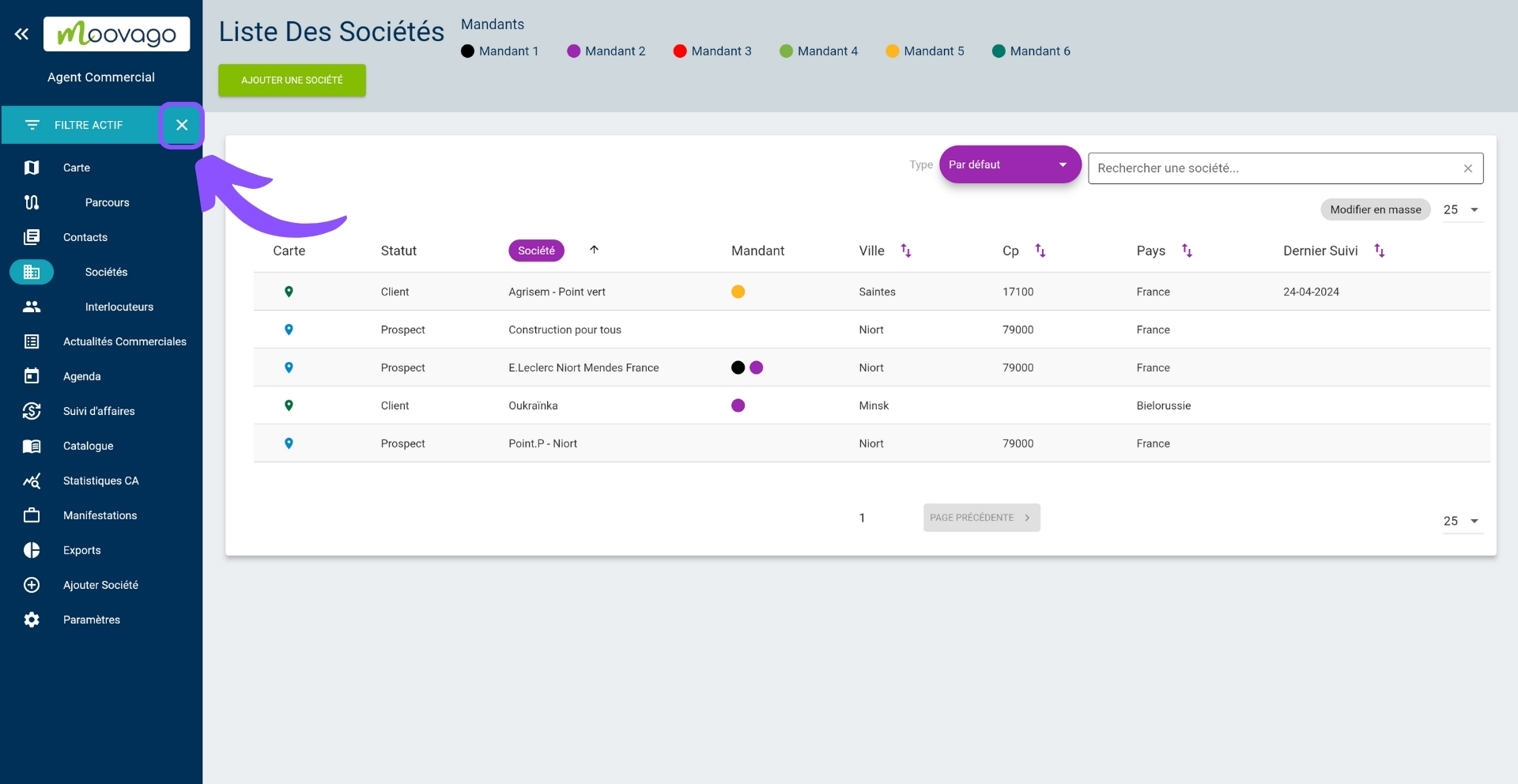
The companies that appear in the list of companies are those that correspond to the filter applied.