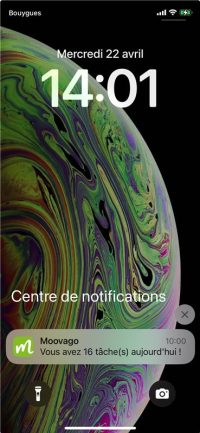
If you have the Moovago application, you’ll receive a notification early in the morning to let you know what tasks you need to complete that day. The notification looks like this:
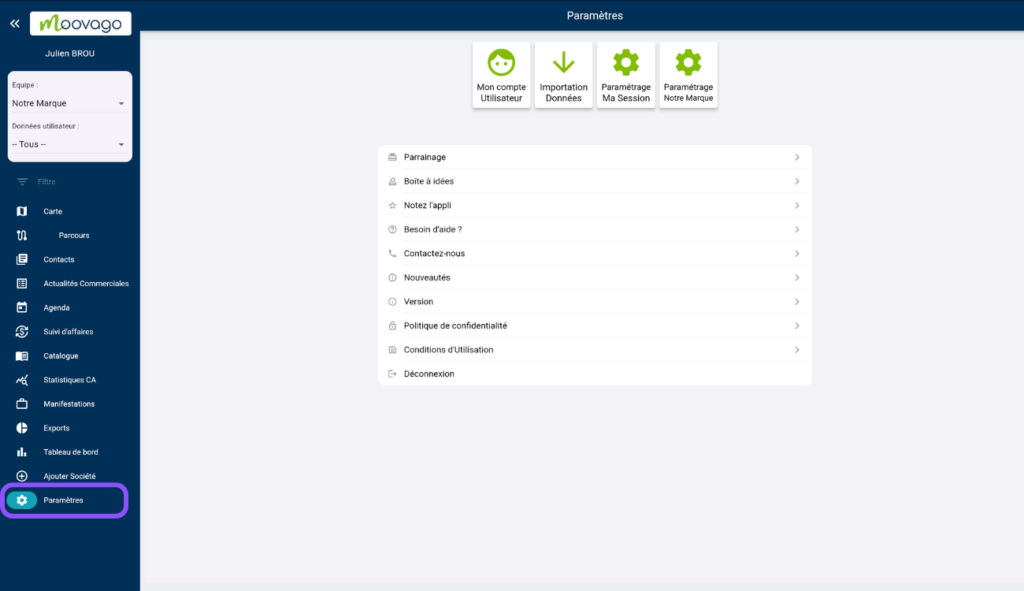
If you’d like, you can also receive this notification via email. To do so, simply go to your account settings at > under “Settings – My Session”:
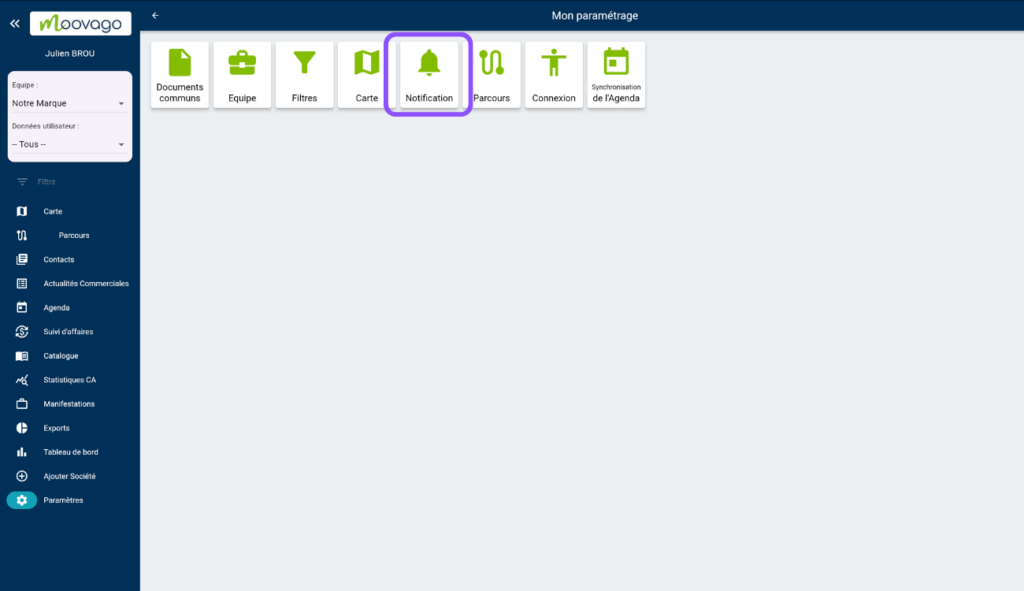
Click “Notification.”
Check the box to receive email notifications.
Task Assignment Notifications
You canassign a task to a team member when you view a company profile. That person will then be notified.
For example:
If a sales director wants to assign a task to the sales representative who owns the company
If the sales representative who owns the company wants to assign a task to his sales administrator
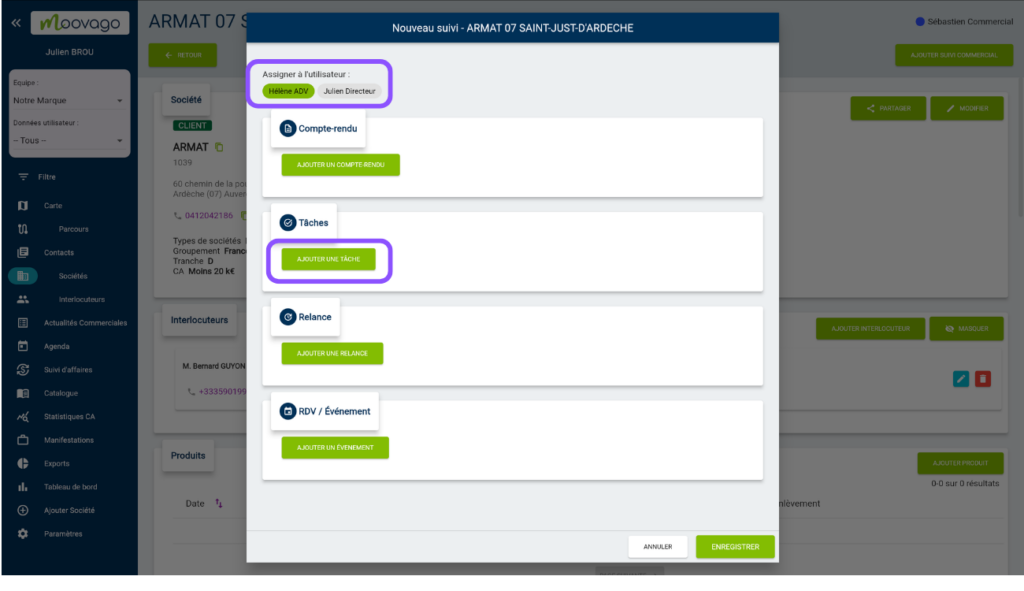
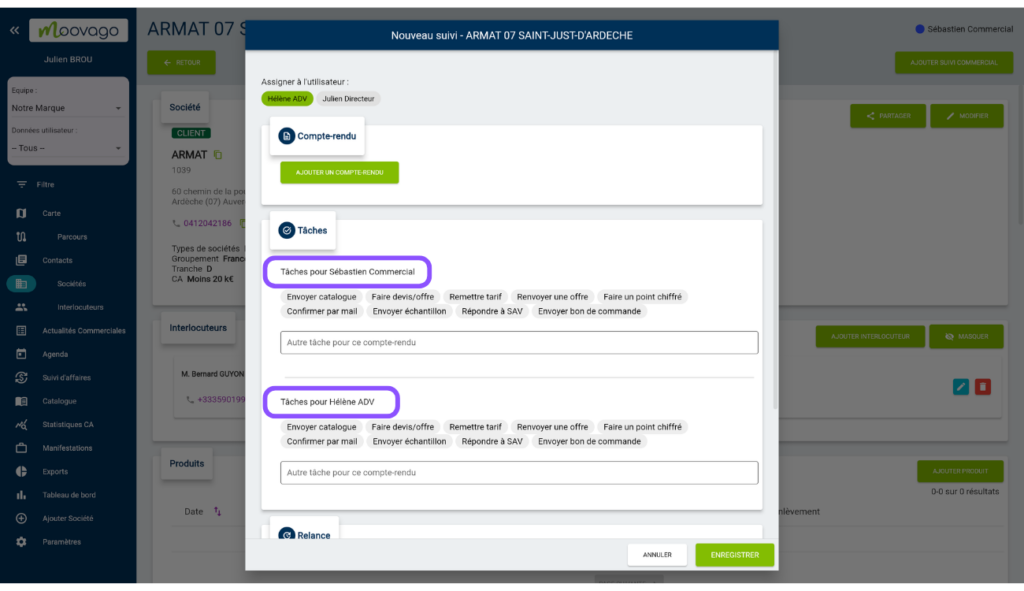
In that case, simply click the “Add Sales Follow-up” button in the upper-right corner of the company page.
You can then select the user to whom you want to assign a task and click “Add a Task.”
You can then create a specific task for yourself and for the selected user.
Once the task is approved, the relevant users will immediately receive a notification on their phones if they have the application installed.