What motivates us, what excites us. Discover our team and our values.
Want to join the adventure? Find out more about career opportunities at Moovago.
All features
Discover Moovago's interface and functions on video!
Updated on 12/11/2025.
IMPORTANT NOTE: this option is only available on the Moovago web application.
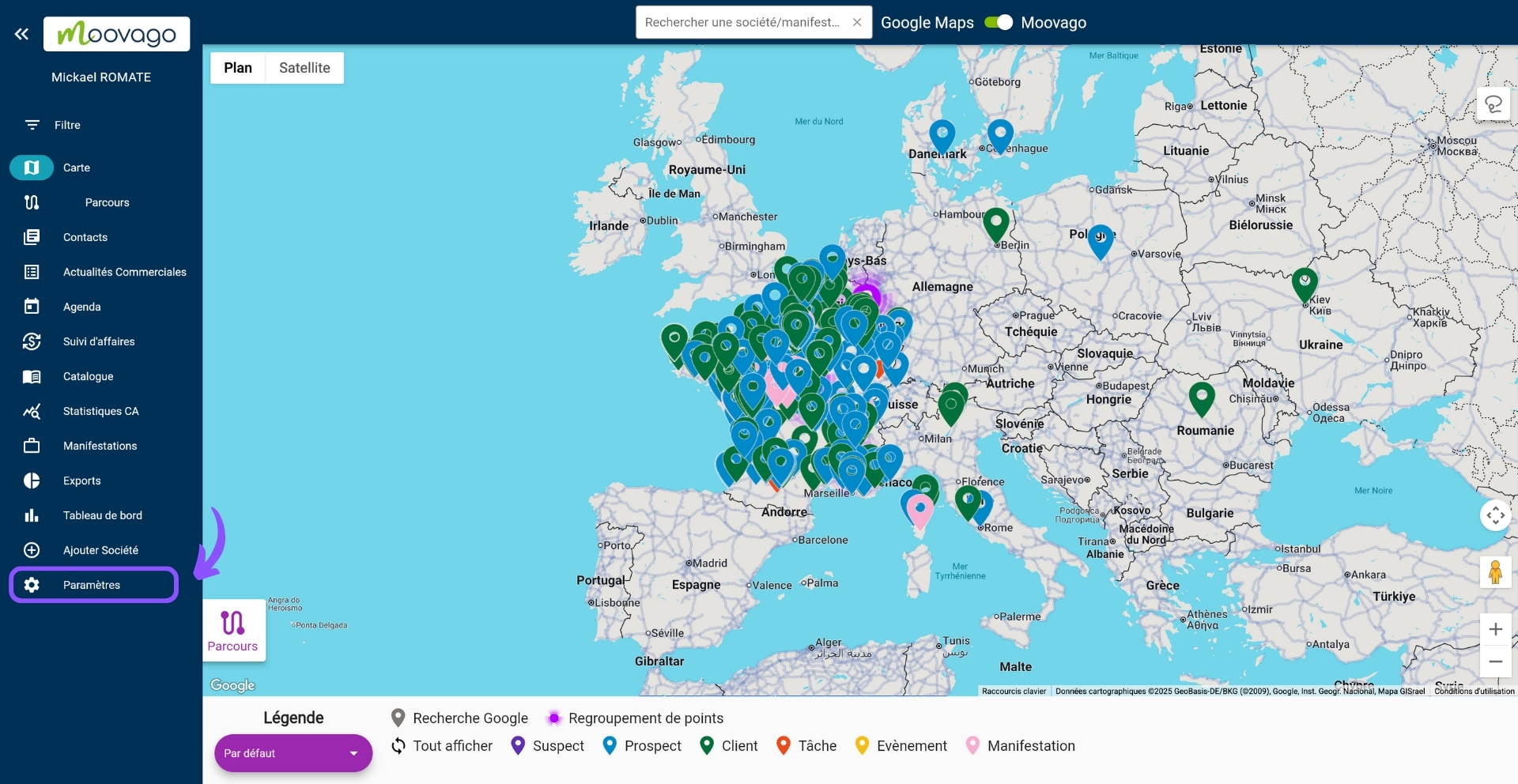
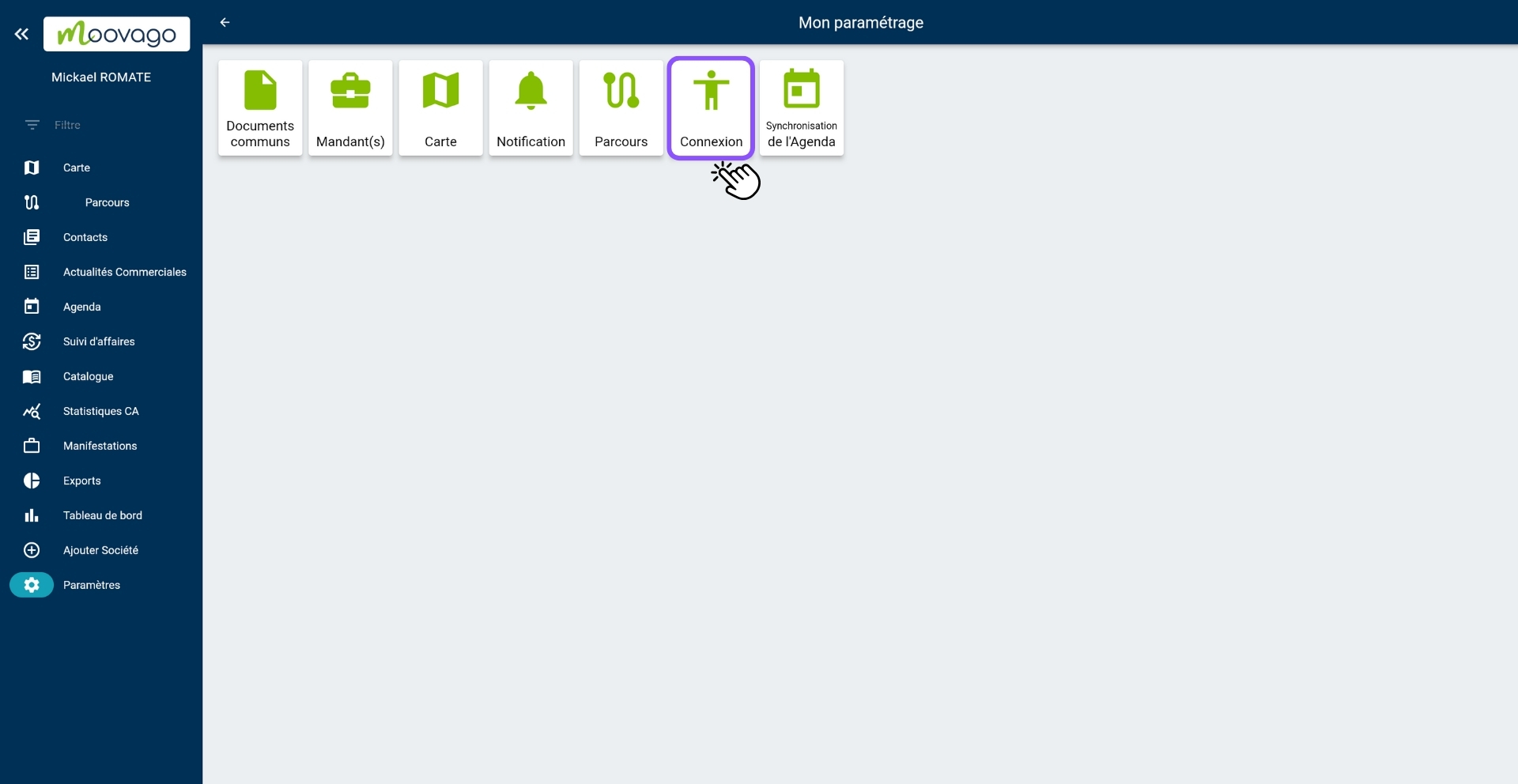
Open your search browser (we recommend Google Chrome). Go to the Moovago web application; then to “Settings”.
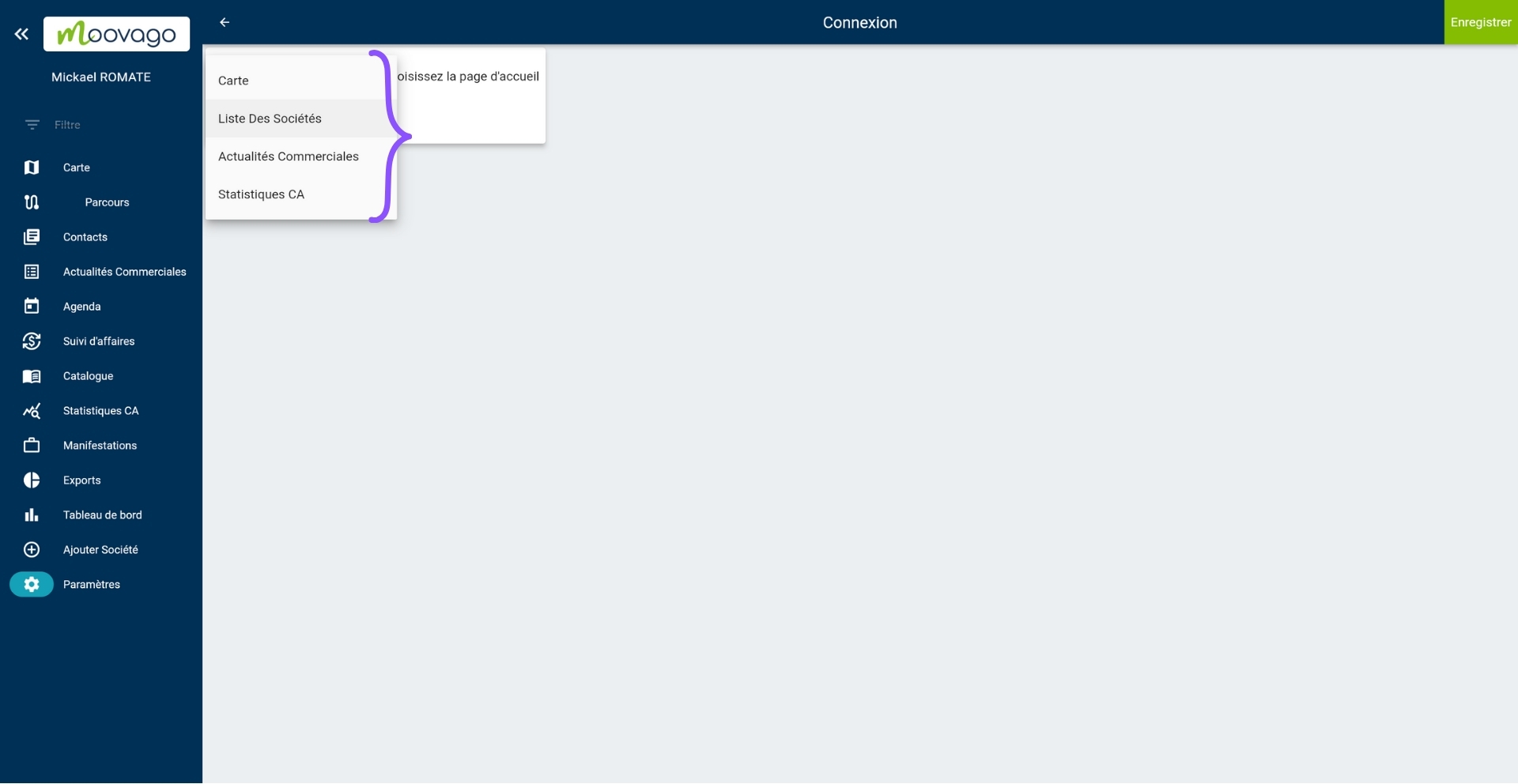
In the drop-down menu, you’ll see at least 3 possibilities – more than 3, depending on the options activated in your Moovago.
Your choice will define Moovago’s default home page, i.e. the one you arrive at each time you connect.
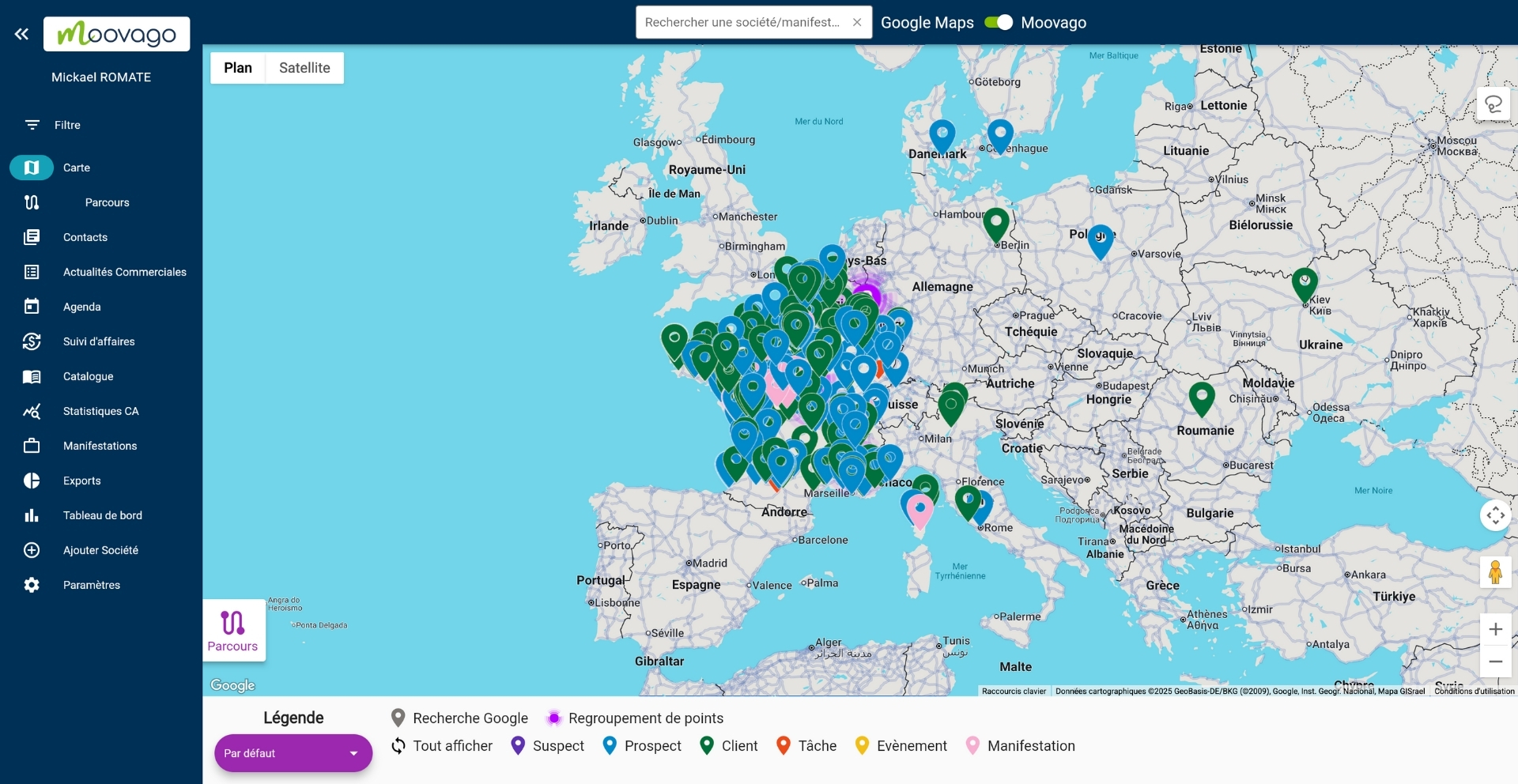
Each time you connect, you’ll automatically be taken to the Moovago map.
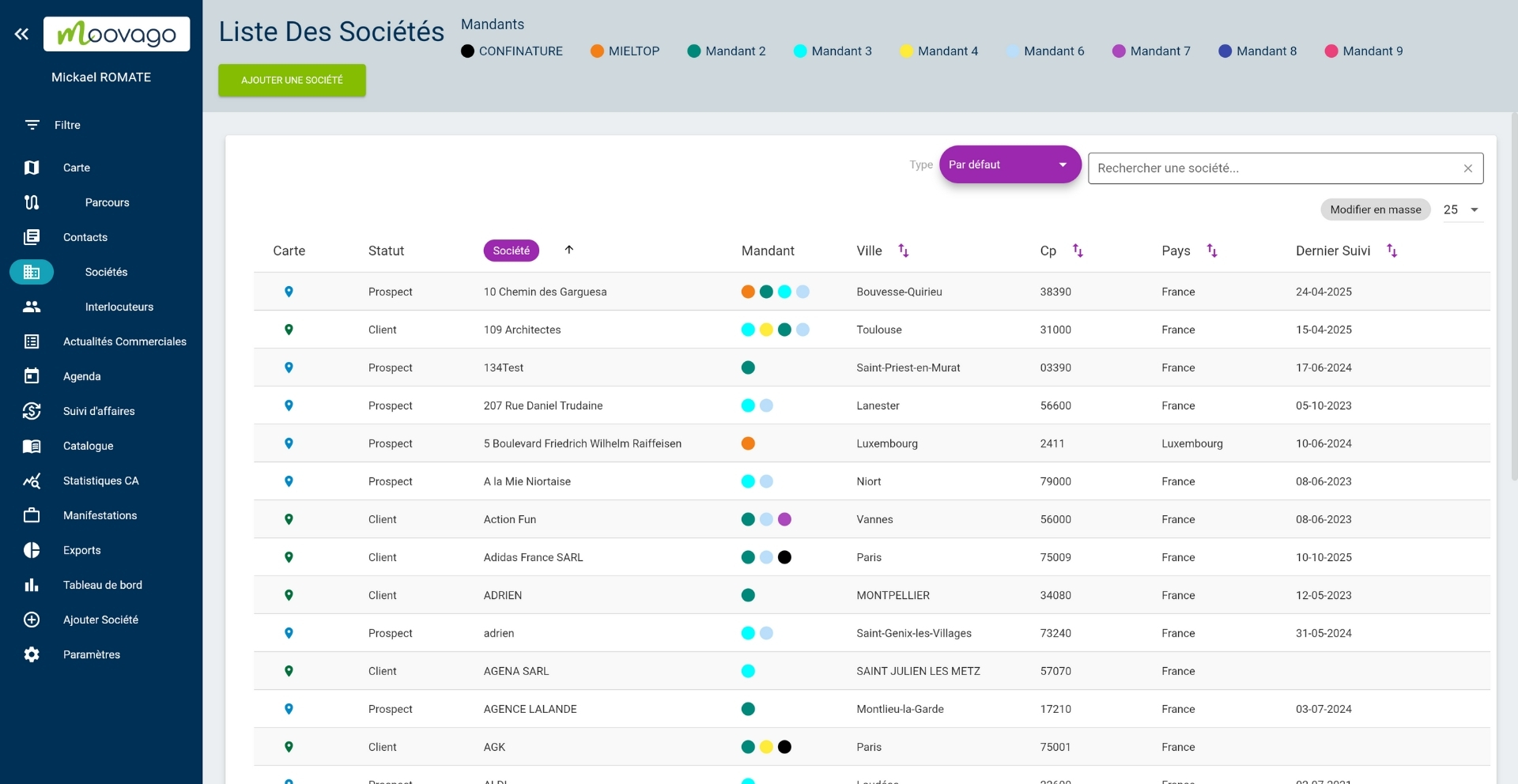
Each time you log on, you’ll be taken to the “Company list” tab.
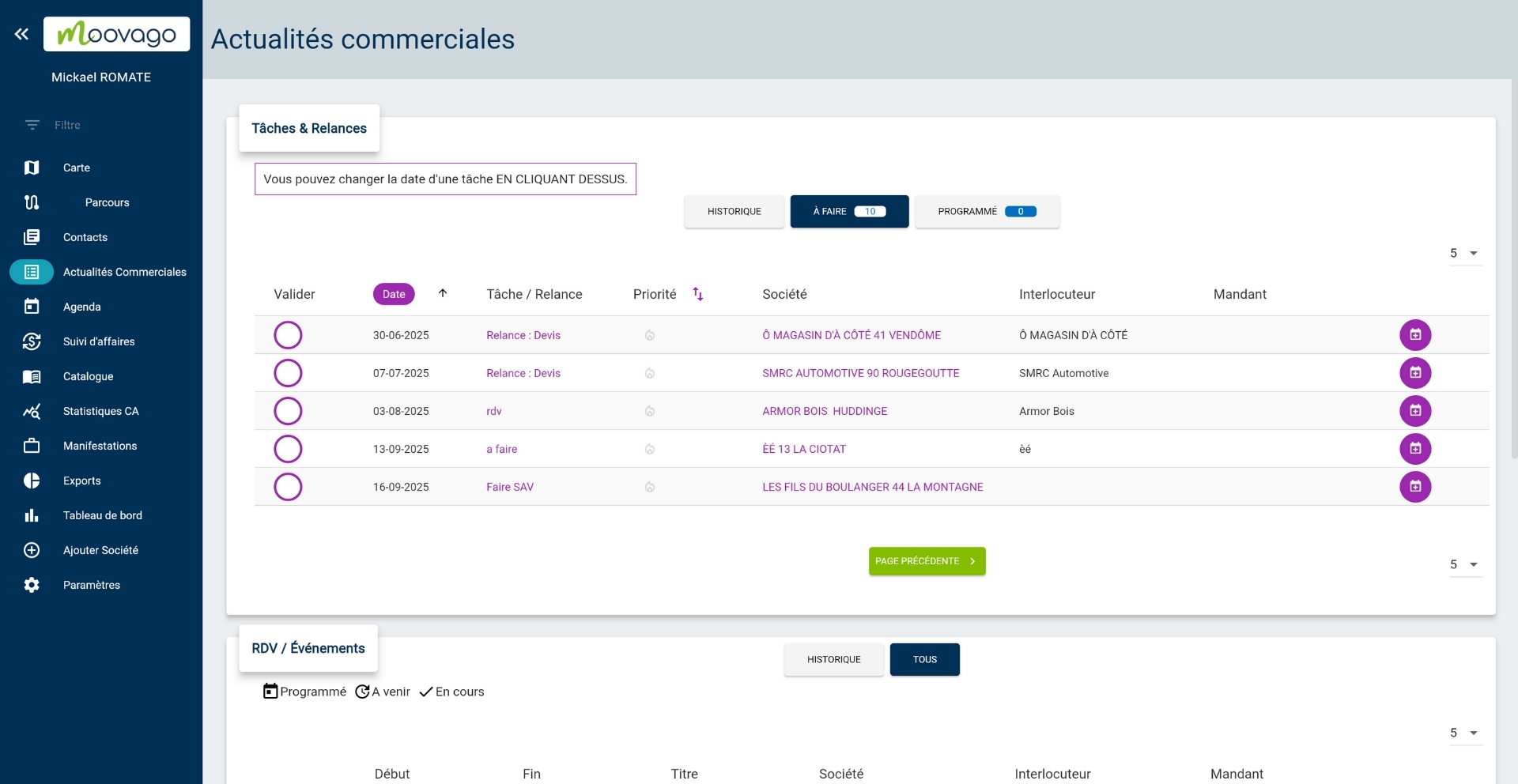
Each time you log on, you’ll be taken to the “Sales News” tab, where you’ll find your tasks and reminders.
You can also choose to arrive on the tab of one of your options – for example, below, on the Business tracking tab.
Don’t forget to save your choice before leaving the settings; otherwise the change will not be effective.