


Do you have a group of companies whose ownership, legal status, or segmentation you want to change in Moovago—without wasting any time?
Bulk editing is your best friend! Follow this guide to learn how to use it and get the most out of it.
What is the purpose of bulk editing?
Here are a few common examples of how this feature is used:
- You are a sales team leader and would like to assign ownership of a group of companies to a specific member of your team.
- Do you want to convert a certain number of prospects into customers?
- Do you want to assign keywords to several specific companies?
- You want to change the segmentation for some of your companies.
Check out the video tutorial on bulk editing in Moovago
Where can I find the bulk edit feature in Moovago?
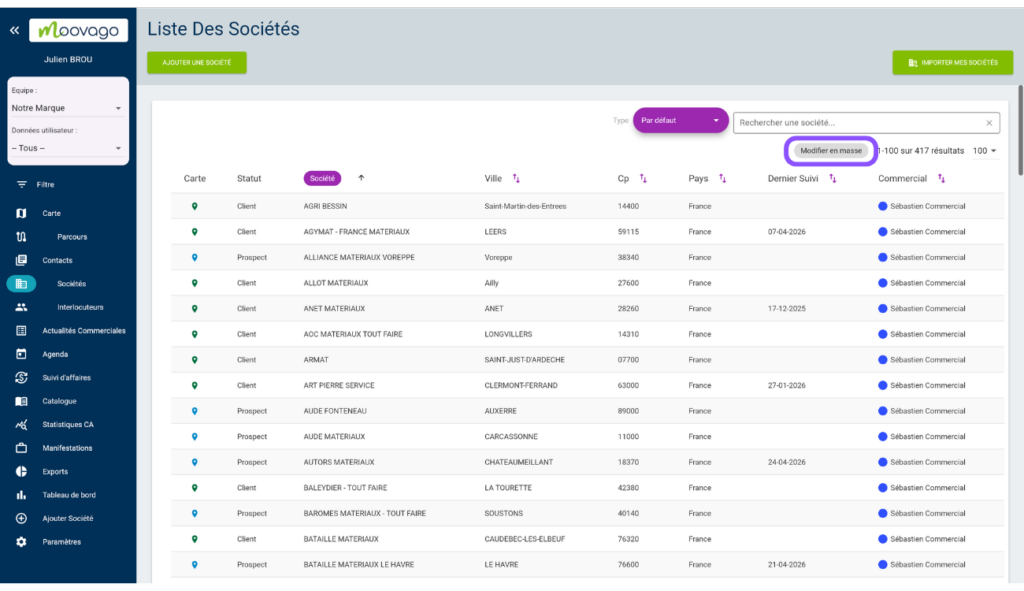
Go to the “Companies” screen in your Moovago application. In the upper-right corner of your list of companies, below the search bar, you’ll find the “Bulk Edit” button.
How do I use bulk editing?
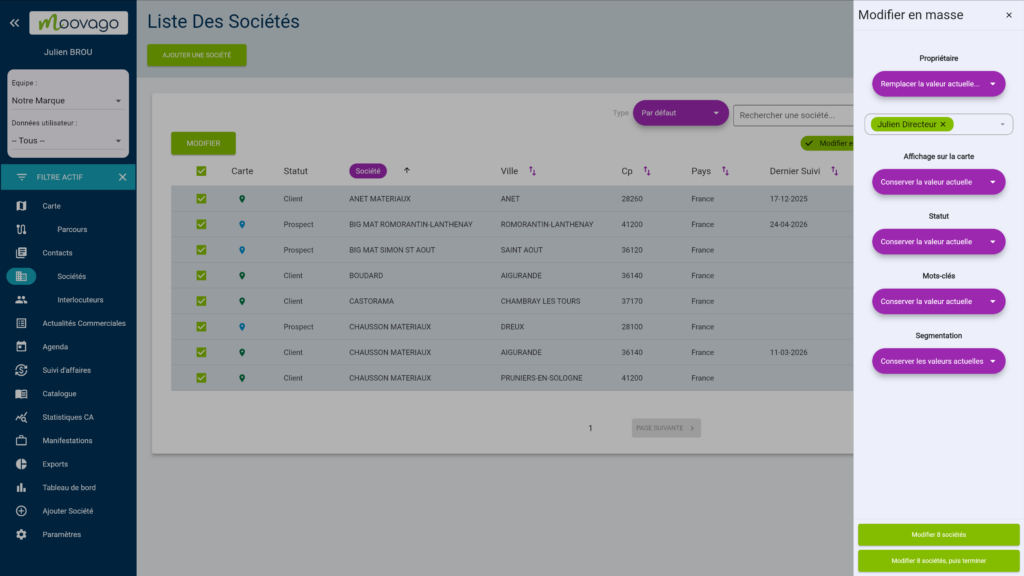
Click the “Bulk Edit” button. Checkboxes will appear to the left of each company, and you can select the ones you’re interested in.
Once you’ve made your selection, click the green “Edit” button in the upper-left corner to display the options.

The editing options then appear in a pane on the right.

What data can be modified using bulk editing?
In this section, you can edit the following data:
- Company owner: You can choose to keep the current value, replace it, or add or remove a value from this field
- Map display: Show/hide the markers for these companies on the Moovago map
- Status: Classify companies as customers, prospects, etc.
- Keywords: Replace, add, or remove keywords for the selected companies
- Segmentation : For each element in your company segmentation, you can keep, replace, or delete the current value entered for the selected companies.
Once you’ve made your selection, all you have to do is confirm it using the buttons in the lower right corner.
- Edit X companies: You can continue to make changes to your selection
- Edit X companies, then finish: this will close the edit window.
A confirmation message will appear on the screen before the application of the changes.

Combining Filters and Bulk Edits
Did you know? You can filter your list of companies using the “Filters” interface in the left-hand menu to select a segment of your company database to update.
Here is an example that shows how to change the team member to whom companies in specific departments are assigned.

In the example below, the following were selected in the Country/Region/Department filter >, France >, Eure-et-Loir, Indre, Indre-et-Loire, and Loir-et-Cher to isolate the companies in these departments.

Once your filter has been validated, you’ll see the corresponding list of companies. You can then select the filter results (by checking the box at the top left of each column in the list) and click “Bulk Edit.”

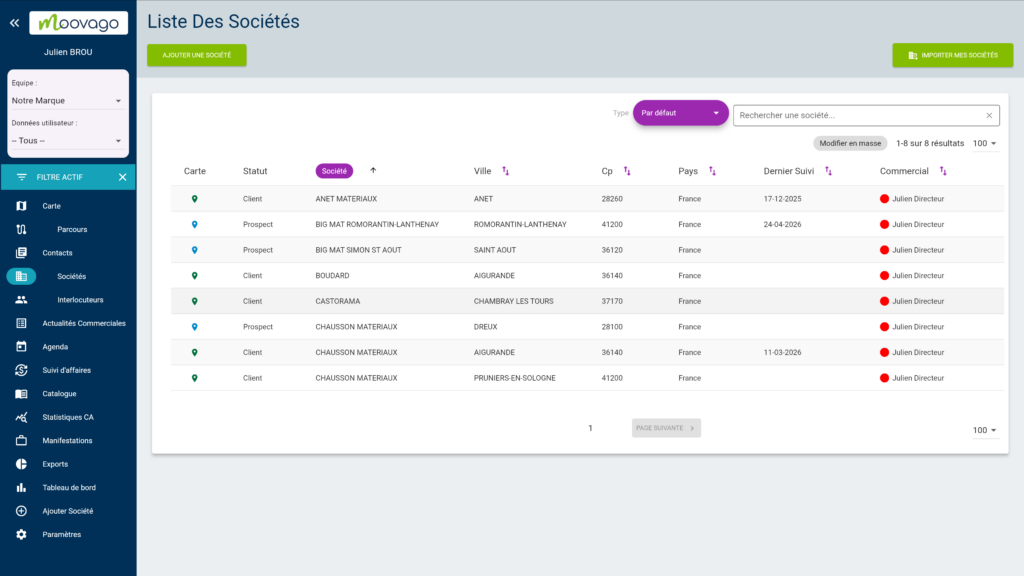
Here, we’ve chosen to change the owner by replacing the sales representative with “Julien, Director.”
Once the change has been confirmed, you can see in the right-hand column that the change in ownership has taken effect.
Now you know everything there is to know about bulk editing companies in Moovago!