


Mis à jour le 8/09/2026
With Moovago’s Route function, you can create and find your rounds in just a few clicks.
In addition to managing your rounds, Moovago aims to put sales follow-up back at the heart of your round. You can create reports, tasks and events following each appointment or stage of the round, so you’re always more efficient and organized on a daily basis.
In this tutorial, we’ll show you how to make the most of the Moovago mobile application and its Parcours feature, when you’re on the road.
Find and start a saved route
Open the file of the first company to visit
To use Routes on your sales round, you need an organized Route ready to launch.
In fact, we advise you to organize your round in advance, so that you can plan your driving time according to your needs and time available. If your rounds are well recorded and up to date, you’ll also find it easier to calculate your mileage expenses with Moovago.
If you have already prepared and saved your round, follow these steps to find and open it:
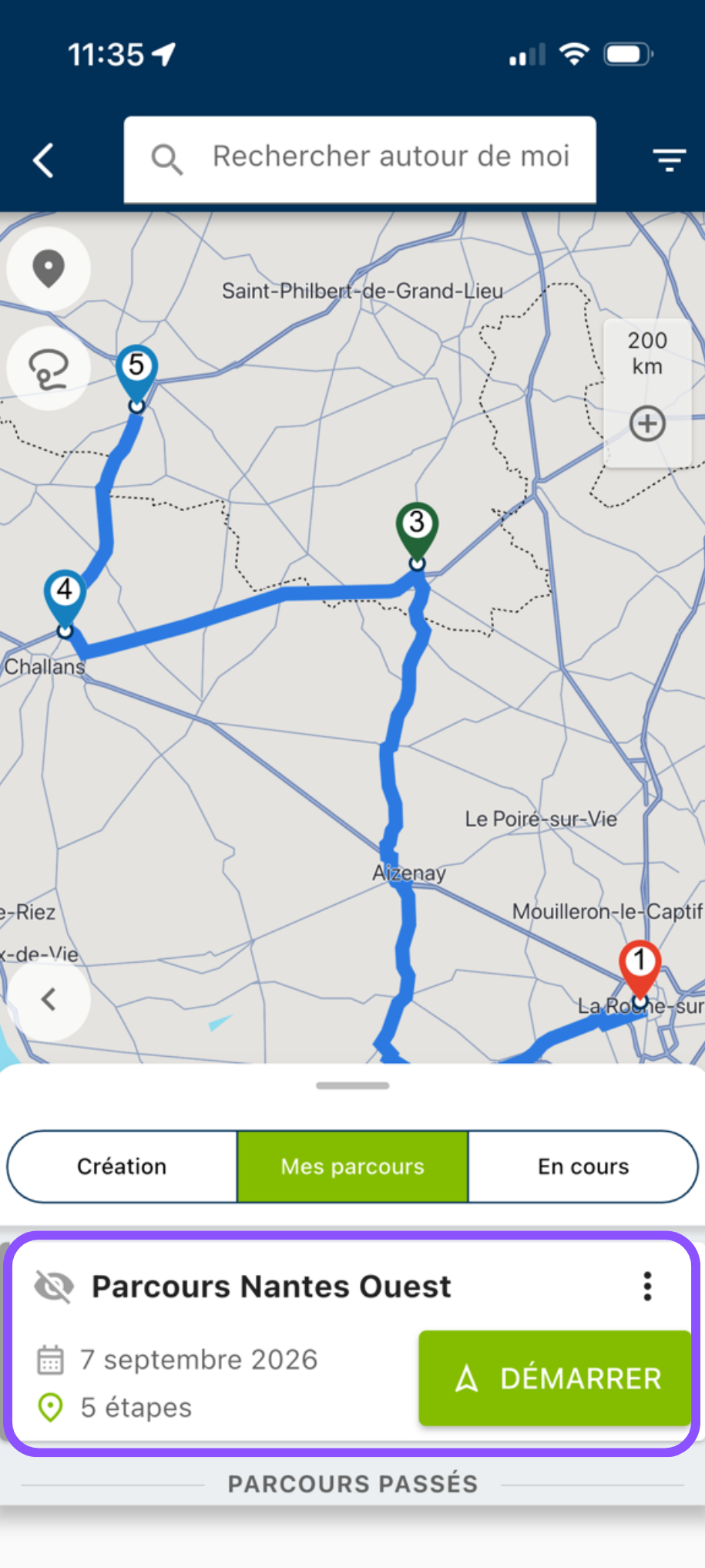
- Open the Route window,
- Click on “My routes” (formerly “Registered”),
- Click the “Start” button below the name of the round you want to carry out
If you haven’t yet prepared your round, you can find the complete process in this mobile tutorial or in this web tutorial.
Start navigation on Waze or Maps
In this company file, click on the “Navigate to” button under the company name. You will then be asked whether you prefer to use Waze, Plans (Apple Maps), Google Maps or Coyote.
When you click on one of the suggestions, you’ll be redirected to the chosen app (In the case of Coyote, the destination is copied to the clipboard. You’ll need to paste it into Coyote). You’ll then see a route between your location and this first company. These apps take real-time traffic into account to adjust your route and save you as much driving time as possible.
Please note : for this to work, you need to have the chosen application installed on your phone, and geolocation activated.

On site, take the time to consult the tracking history
Once you’re there, if you haven’t already done so, take a few minutes to prepare your appointment and review your contact’s file.
In the Route window, click the first company to visit, which is highlighted in green.
This allows you to quickly access the company’s file.

From this interface, you can quickly browse the latest exchanges and information involving this company:
- Find the name of the contact you need to meet,
- Read the latest minutes to recall your exchanges,
- If necessary, you can also retrieve all saved documents,
- POS tools and recovery items,
- Latest samples or demos submitted,
- Current cases and their status,
- Salesrevenue history for this customer/prospect,
- Latest reminders and tasks completed…
After the appointment, carry out your sales follow-up
At the end of your appointment, it’s time to take 5 minutes for your sales follow-up.
Although it may seem tedious, taking minutes and noting tasks to be completed is essential for staying organized and will save you time in the long run!
To quickly complete your sales follow-up, you can do it directly from the company file (if you haven’t closed Moovago, you should still be on this page). As you scroll down this file, you’ll reach the sections dedicated to sales follow-up.
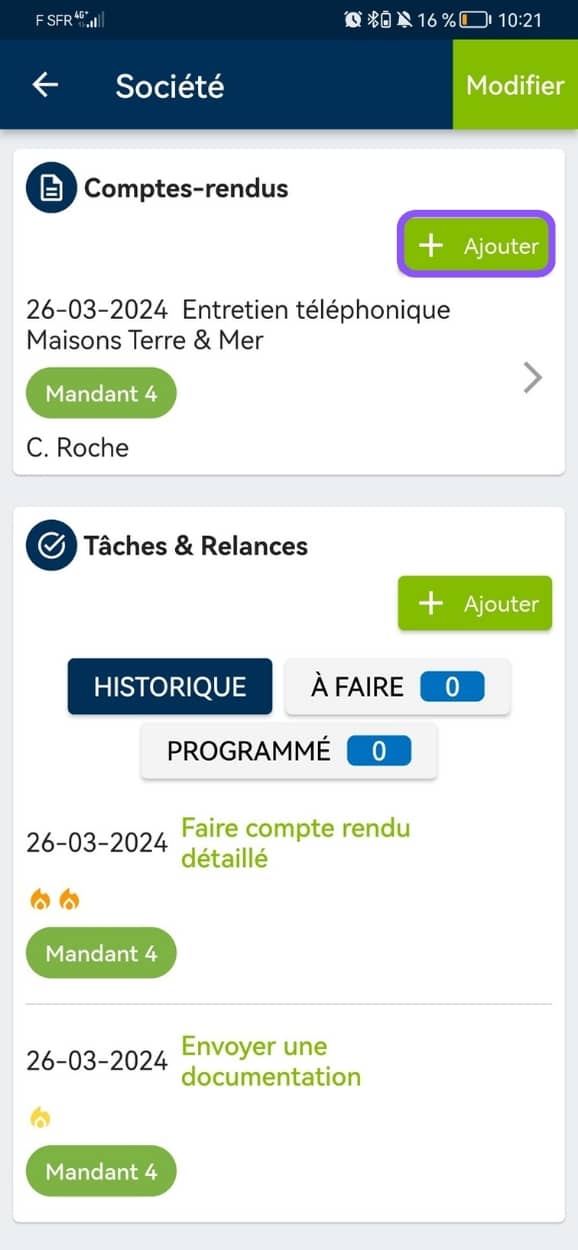
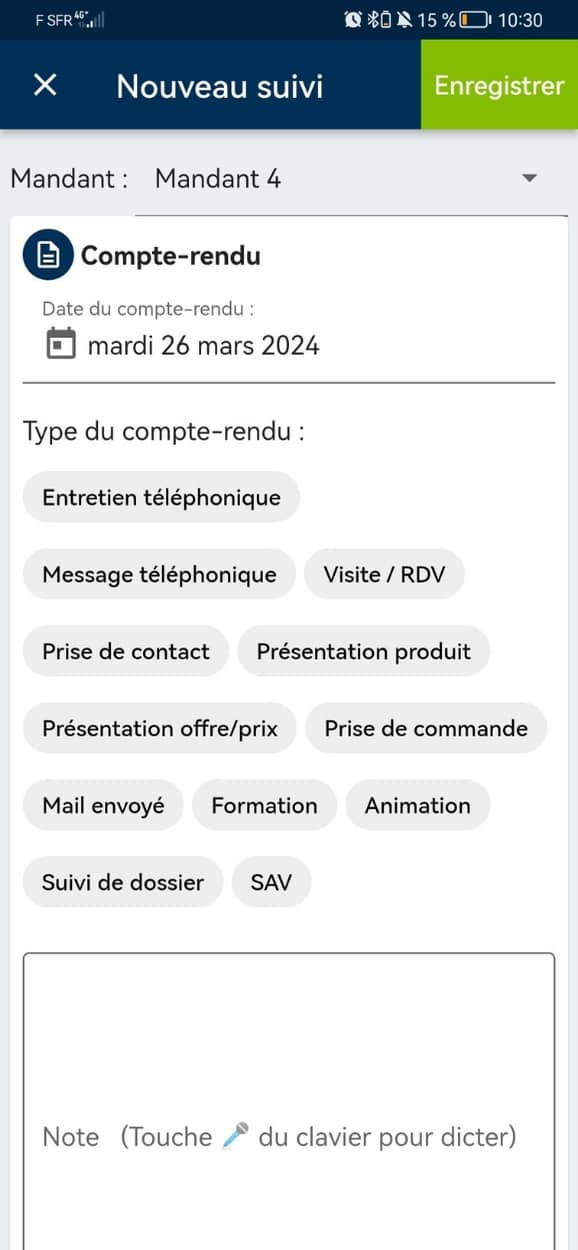
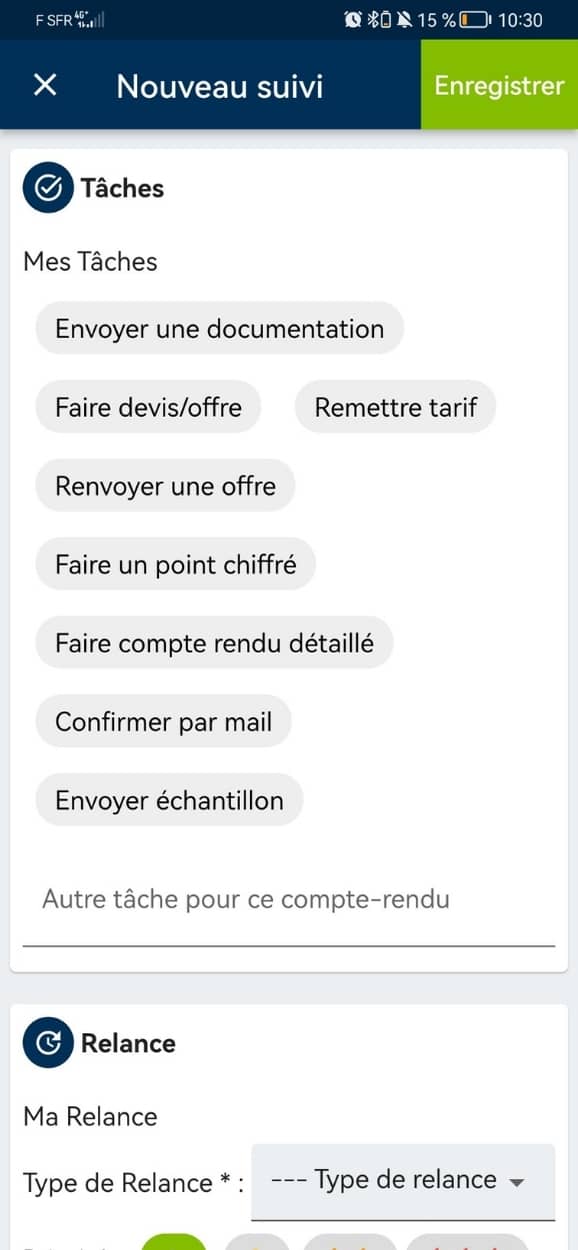
From the screen that appears, you can quickly take notes:
- A summary of your appointment in the “Minutes” section, using your phone’s dictation tool if you want to save even more time,
- The next tasks to be carried out: for example, to send a quote, documentation, confirmation or information by e-mail, etc. Note: the default to-do lists can be customized via your settings.
- Next reminders: schedule when you need to remind your customer; note the subject.
- Upcoming appointments or events: do you need to visit this contact later? Do you have another appointment scheduled?
Click on “Save” in the top right-hand corner of the screen.
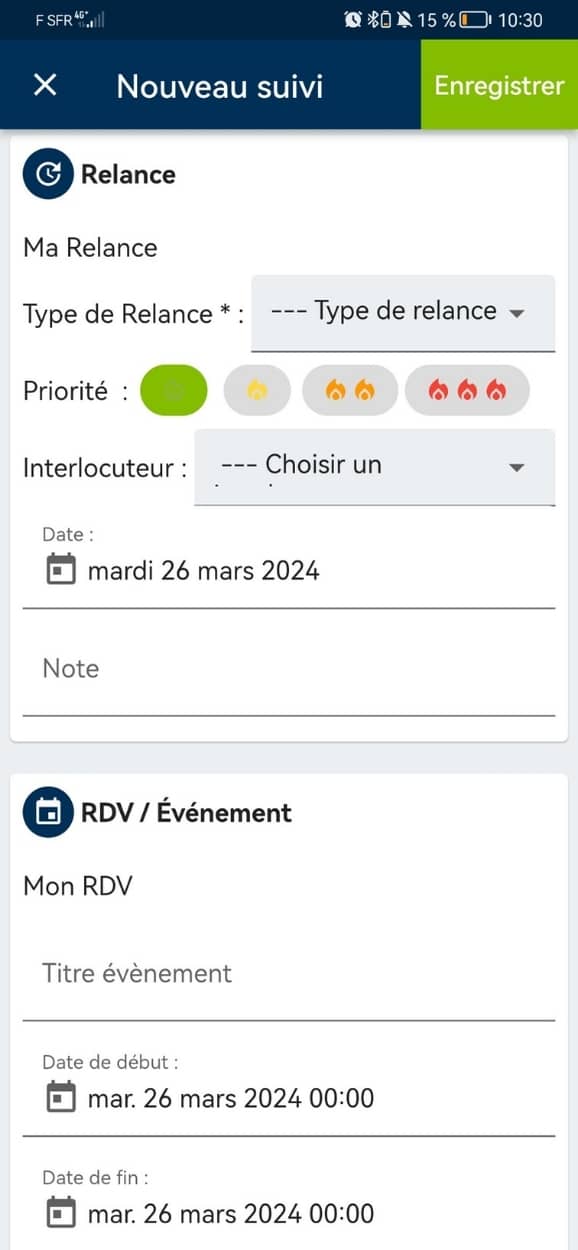
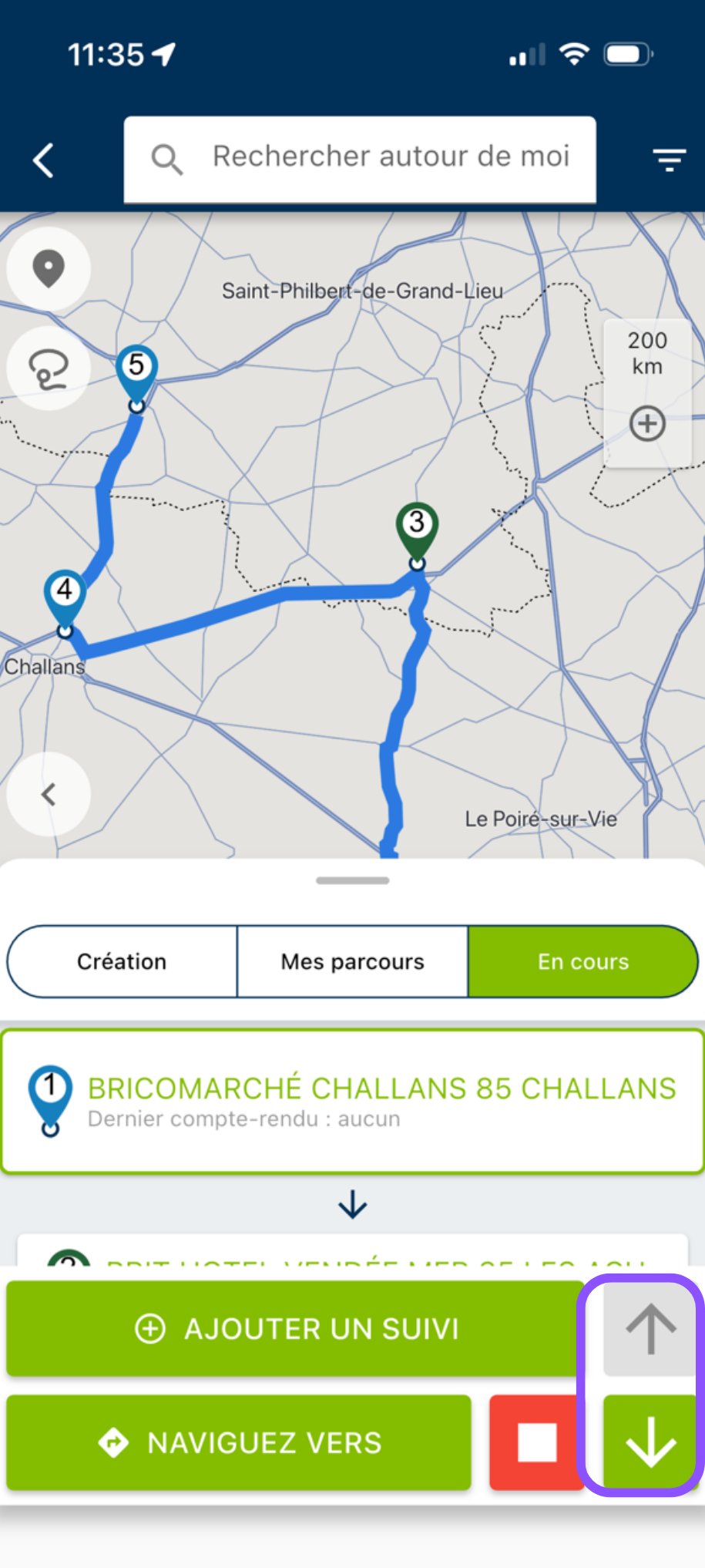
If you’re no longer on the company file, you can add the report directly from the current route interface, via the “Add a follow-up” button


Repeat these steps for each stage of your round
Then,
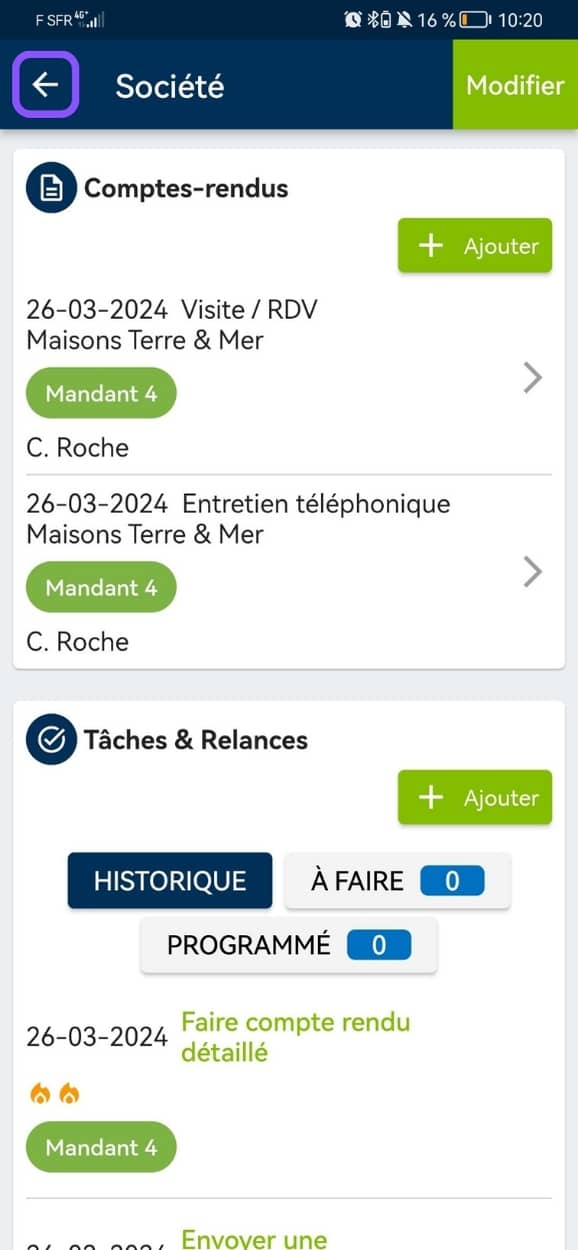
- If you’re on the company profile, click the arrow at the top left of the screen to go back and return to the Route window.
- If you created the sales follow-up directly from the route, saving it will take you straight back to the current route.
All you need to do now is click the down arrow at the bottom right to move to the next stop on your route, and repeat this for each stop on your round (for each company to visit).
If you want to go back to the previous stop, simply click the up arrow.
Another tip: what to do if you have to cancel an appointment?
If one of your appointments is unfortunately cancelled at the last minute, the Moovago card will provide you with options for staying productive.
Use the time at your disposal to :
- Visit nearby customers or prospects: find nearby green (customers) or blue (prospects) markers on the map,
- Find tasks to be carried out nearby: by viewing the markers in red on the map,
- Do some physical prospecting and get in touch with new prospects close to you: using the Google search integrated into the Moovago map.
Pensez à ajouter les établissements visités dans le parcours initialement prévu pour faciliter le calcul des frais kilométriques par la suite !